Build with AI · Get started
Start building with AI, safely
Five steps for your first tool, the rules that keep client data safe, and where to go next.
For beginners
Your first tool in five steps
-
Step 1: Pick one AI tool and turn off training
Claude or ChatGPT, on a business plan if you can. Switch off model training in its settings.
-
Step 2: Set the golden rule
Client data never goes into an AI chat. Write it down and tell your team today.
-
Step 3: Start from a tested prompt
Pick a tool below. Each prompt carries the safety rules, so the AI builds it safely.
-
Step 4: Run it on your computer, offline
One file, internet blocked, nothing saved. Its self-test proves it works.
-
Step 5: Check it before you trust it
Run the safety-check prompt, and have a person review what the tool produces.
Pick your first tool for step 3:
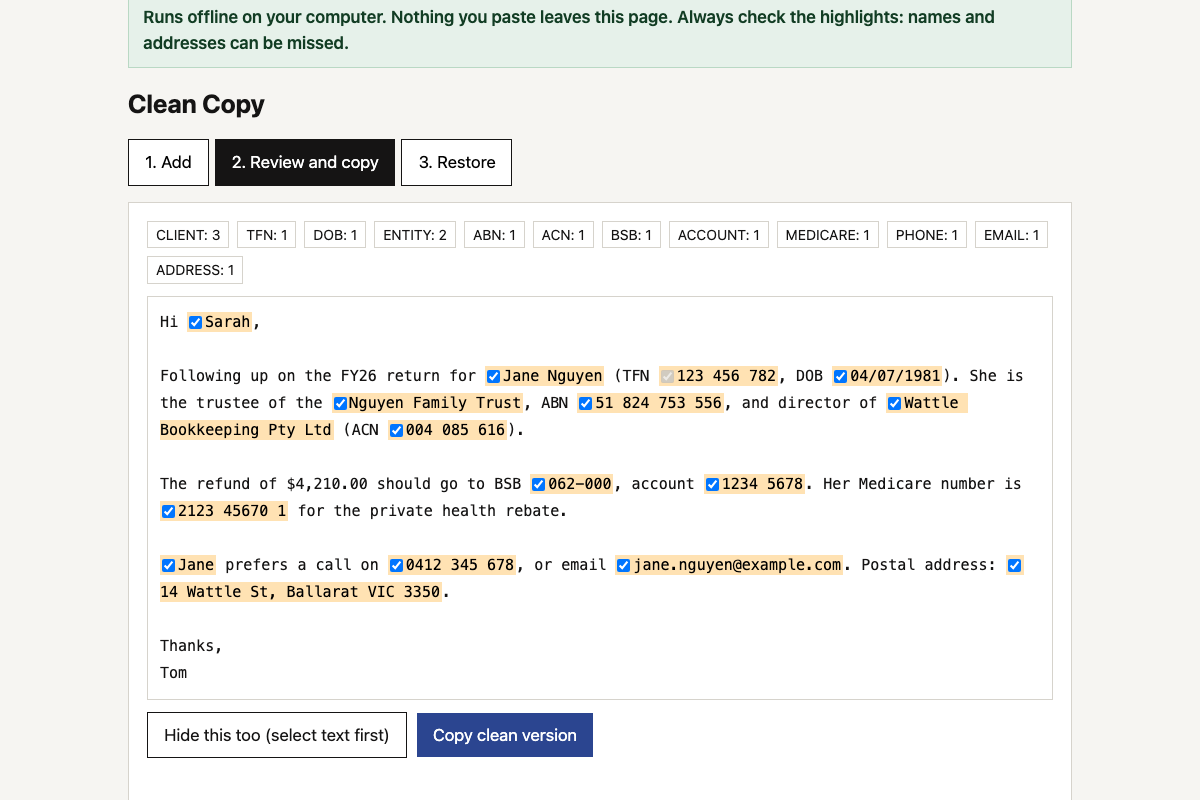 Client data redaction tool
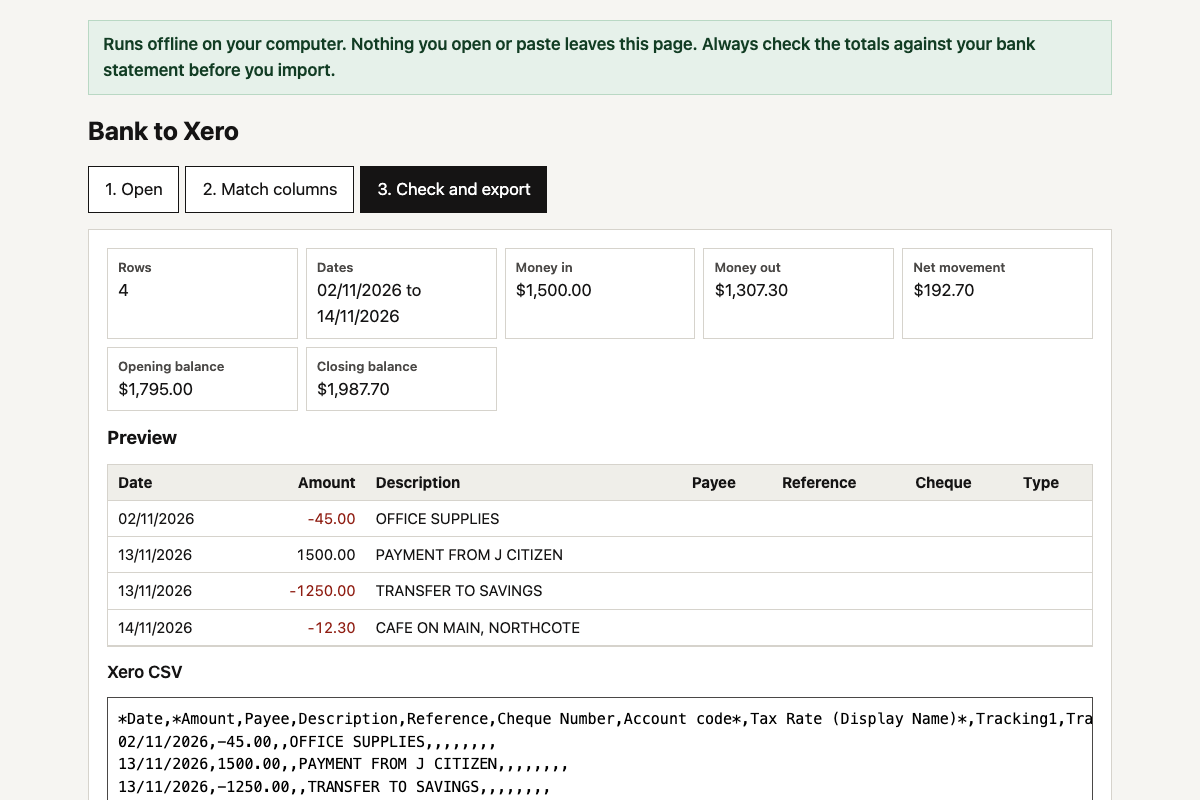 Bank CSV to Xero converter
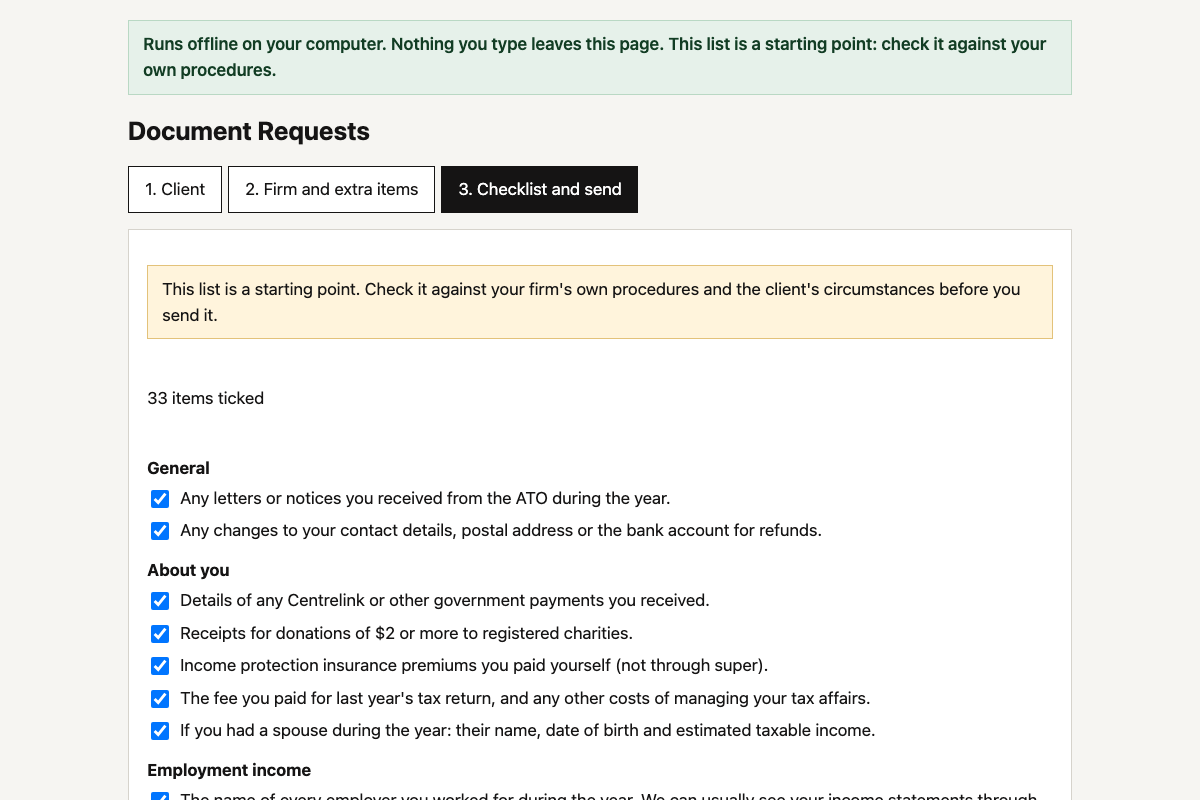 Client document request builder
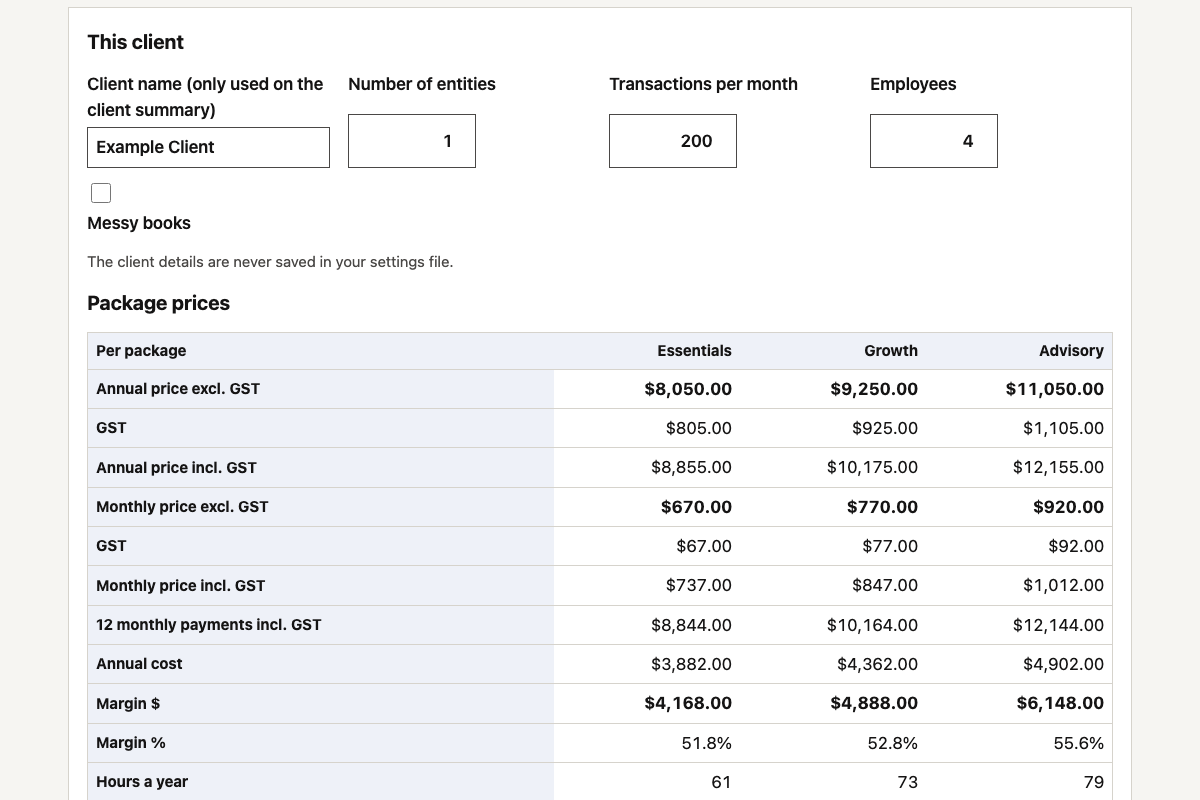 Fixed-fee package calculator
Always
The guardrails
- No client data in chats Not to build, not to test, not to fix a bug.
- Made-up test data Every prompt brings its own sample.
- Offline by default Tools run on your computer with the internet blocked.
- A file you can read One HTML file, no hidden parts, no installs.
- A second opinion The safety check audits the code for you.
- A person signs off Someone checks the output before a client sees it.
- Keep a record Note who built what, when, and from which prompt.
- No live systems yet Connecting to Xero or your practice software waits for the advanced steps.
Using AI safely: the beginner guides
- Client data and AI: a beginner’s guide →What happens to what you type into ChatGPT, Claude or Copilot, what client information is safe to use, and five steps to set your firm up safely.
- Is ChatGPT safe? Privacy settings for ChatGPT, Claude, Copilot and Gemini →Where to switch off model training in ChatGPT, Claude, Microsoft Copilot and Gemini, what a business plan changes, and the feedback button that can share a chat.
- Shadow AI: find the AI your team already uses, without blame →Shadow AI is the AI your team uses that the firm hasn’t approved.
- Connecting AI to your systems: a beginner’s checklist →What MCP connectors are, what can go wrong when you link Claude, ChatGPT or Copilot to Xero, practice software, email or files, and a six-step checklist to connect safely..
- AI vendor jargon, explained: SOC 2, DPAs, subprocessors and more →What SOC 2 Type 2, ISO 27001, a data processing agreement, subprocessors and data residency mean, the question to ask about each, and how to approve an AI vendor in five steps..
- AI scams and deepfakes: protect your firm and your clients →Cloned voices, deepfake video calls and perfect fake emails target firms that move money and hold data.
Advanced
Coding with AI, with guardrails
When one file isn’t enough. Do these in order.
-
Step 6: Move bigger projects to a coding toolClaude Code or OpenAI Codex work on a folder of files on your computer, not one chat answer.
- Install Node.js, then the coding tool, following its own instructions.
- Make an empty folder for each project and start the tool inside it.
- Keep projects on your computer, away from shared drives that hold client files.
-
Step 7: Give every project a rules fileA short file the AI reads first: what the project is, what it must never do. Copy ours below.
- Claude Code reads CLAUDE.md; Codex reads AGENTS.md. Use the same text in both.
- Put the golden rule and the offline rule at the top.
-
Step 8: Save every versionUse git, with a private GitHub repository if you want a backup, so any change can be undone.
- Ask the AI to commit after each working step, with a plain message.
- Never commit client files or passwords. Add them to .gitignore.
-
Step 9: Review every changeAsk the AI to explain each change in plain English before you accept it, then run the tests.
- Ask a second AI, or a second chat, to review the code for safety.
- If you don’t understand a change, don’t accept it yet.
-
Step 10: Keep keys and passwords out of the codeAPI keys go in a local .env file the AI never sees and git never saves.
- Use a separate key for each tool, with the least access it needs.
- If a key ever appears in a chat or a commit, cancel it and make a new one.
-
Step 11: Connect live systems last, read-only firstTry Xero or your practice software with a demo company and read-only access before real data.
- Get your IT provider to review anything that reads client data.
- Write down what the tool can see and where its data goes, for your privacy records.
A rules file for every project
Save it as CLAUDE.md (Claude Code) or AGENTS.md (Codex) in the project folder. Fill in the first line.
# Project rules for AI coding (The Firm template)

## What this project is
[One line: what the tool does and who uses it.]

## Never
- Never ask for, use or invent real client data. Use made-up test data only.
- Never add network calls, analytics, external scripts or fonts unless I approve it in writing.
- Never store data in the browser (localStorage, cookies) or send it anywhere.
- Never put API keys, passwords or tokens in code. Read them from a local .env file.
- Never delete files or rewrite history without asking me first.

## Always
- Keep the tool runnable offline from a single file where possible.
- Include a self-test that uses made-up data, and run it after every change.
- Explain each change in plain English before making it.
- Commit after each working step with a clear message.
- Tell me about anything that could expose client information.