Bank CSV to Xero converter
Turns a CSV from any Australian bank’s internet banking into Xero’s bank statement import format, with the dates, signs and columns fixed.
- About 10 minutes
- Works offline
- Tested 11 Nov 2026
Free. Opens in Chrome, Edge or Safari. Read the disclaimer first.
What it does
When a bank feed breaks or a client sends an export, this gets the statement into Xero in a minute instead of an afternoon of spreadsheet fixes.
- 01 Open any bank’s CSV CBA, Westpac, NAB, ANZ and others: signed amounts, debit and credit columns, or no headings.
- 02 Match the columns It guesses date, amount, payee and description, and you can fix any of them.
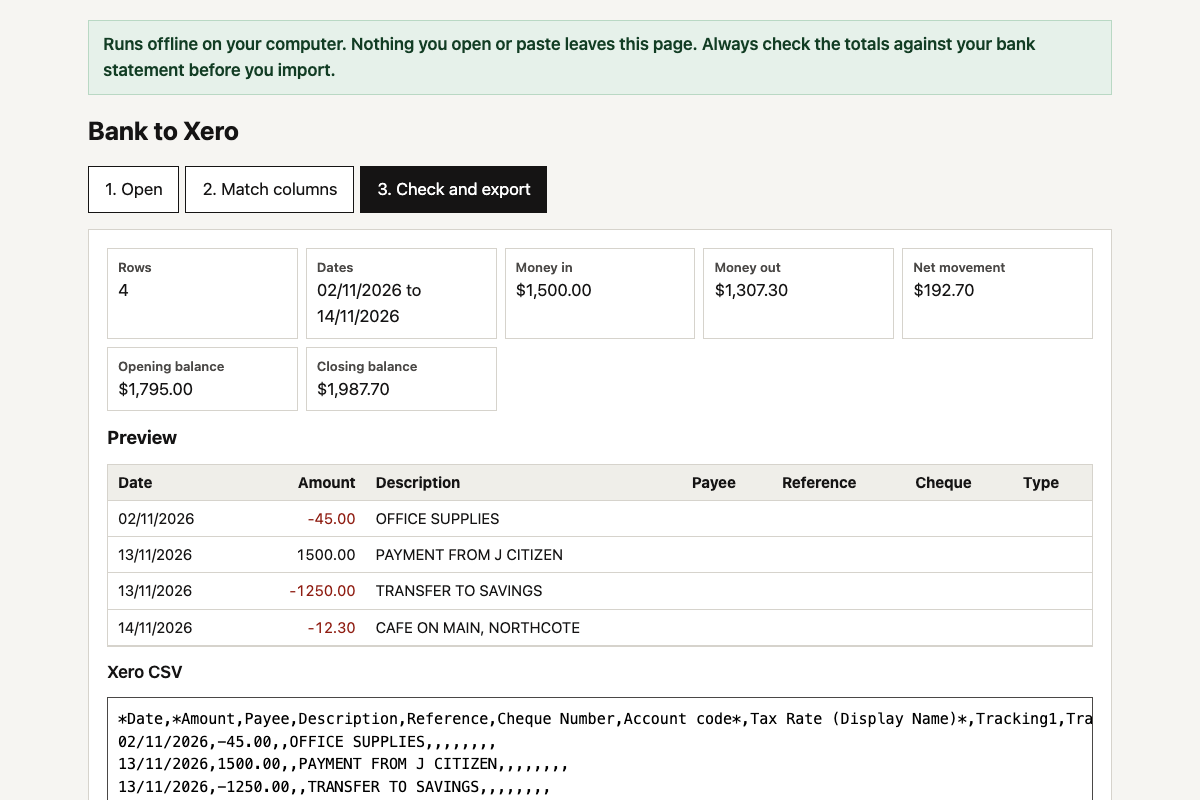
- 03 Check before import Unreadable rows, duplicates, dates out of order and totals, flagged before you load anything.
- 04 Export for Xero Xero’s statement layout, dd/mm/yyyy dates and signed amounts, ready to import.
Where your data goes
The AI only sees the prompt and made-up transactions. Real bank exports only ever go into the finished tool on your computer, with the internet blocked.
That’s all the AI ever sees. It writes the tool and hands back the code.
A rule inside the file blocks every internet connection. Nothing is saved, and closing the tab wipes it.
For beginners · about 10 minutes
Build your own in five steps
-
Step 1: Turn off model training
Claude: Settings › Privacy. ChatGPT: Settings › Data controls.
-
Step 2: Give the prompt to Claude or ChatGPT
It builds the whole tool in one answer. If it stops, reply “continue”.
The prompt
Opens a new chat with the prompt. Long prompts go on your clipboard: paste into the chat that opens.
Works without client data. Don't paste client names, tax file numbers or ledgers into an AI tool your firm hasn't approved for them. AI data safety playbook.
Read the full prompt (14,251 characters)
I'm an Australian accountant or bookkeeper. Build me a private converter that I'll run on my own computer. It turns a CSV exported from any Australian bank's internet banking into a CSV I can import into Xero as a bank statement. Build the whole thing in one go, using the defaults below. Don't ask me questions first. SAFETY RULES (these override everything else) 1. Never ask me to paste real bank data into this chat. While we build and test, use only the made-up sample data in this message. 2. Deliver ONE self-contained HTML file that I save and open from my own computer. No server, no account, no installation. 3. The file must make no network connections of any kind. No external scripts, libraries, fonts, images, CDNs, analytics or tracking. No fetch, XMLHttpRequest, WebSocket, sendBeacon or EventSource. No forms that submit anywhere. No links that carry data. 4. Put this exact Content-Security-Policy meta tag first in the <head>, so the browser itself blocks any connection: <meta http-equiv="Content-Security-Policy" content="default-src 'none'; script-src 'unsafe-inline'; style-src 'unsafe-inline'; img-src data:; connect-src 'none'; form-action 'none'; base-uri 'none'"> 5. Never store bank data. Keep everything in memory only. Don't use localStorage, sessionStorage, IndexedDB or cookies. Closing the tab must wipe everything. Add a "Clear everything" button and a warning before the tab closes if anything is loaded. 6. The download must be made in the page from a Blob with URL.createObjectURL and an <a download> link, then the URL revoked. That stays on my computer. Never use a data: or http link for it. WHAT IT DOES Three tabs: 1. Open, 2. Match columns, 3. Check and export. Only one tab shows at a time. 1. Open: an "Open file" button for .csv and .txt files (read locally with FileReader), and a large box where I can paste the CSV instead. A "Load sample" button with a drop-down to pick one of the three samples below. "Clear everything" and "Run self-test" buttons. A "Next" button. 2. Match columns: a table with one row per column in my file, showing its heading (or "Column 1", "Column 2" if there's no header row), the first three values, and a drop-down to choose what it is: Date, Amount (one column, + and -), Money out (debit), Money in (credit), Description, Payee, Reference, Cheque number, Transaction type, Balance, or Ignore. Guess these automatically, and let me change them. Also: - A "First row is headings" tick box, guessed automatically. - A date format drop-down: Automatic, Day/month/year, Month/day/year, Year-month-day. - A "Flip the sign" tick box for banks and cards that export withdrawals as positive numbers. Any change updates the result straight away. Every time the input changes (Next, Load sample, Open file, or clicking a tab after editing the box), redo the match and redraw both tab 2 and tab 3, including when the input is empty or unreadable, so no tab ever shows an old result. 3. Check and export: totals, warnings, a preview table of the converted rows, the output CSV in a read-only box, a "Copy" button and a "Download CSV" button. If Date, or Amount, or both Money out and Money in aren't matched, say what's missing and disable Copy and Download. READING THE BANK FILE - Parse CSV properly: quoted fields can contain commas, line breaks and doubled quotes (""). Accept CRLF or LF. Strip a byte-order mark. If a line has more semicolons or tabs than commas outside quotes, use that as the separator instead. - Ignore blank lines. Some banks put account details above the table: skip any lines before the first line that has the same number of columns as most lines. - Headings: the first row is headings if none of its cells is a valid date. - Guess columns from the headings, checking these in order and giving each choice to the first matching column only (later matches become Ignore): "balance" = Balance; "debit", "withdrawal", "money out", "paid out" = Money out; "credit", "deposit", "money in", "paid in" = Money in; "date" or "posted" = Date; "amount" or "value" = Amount; "cheque", "check" or "serial" = Cheque number; "reference" or "ref" = Reference; "payee" or "merchant" = Payee; "type" or "categor" (so "Category" and "Categories" both match) = Transaction type; "description", "narrative", "details", "particulars" or "memo" = Description. Match case-insensitively. Only after checking every column, if nothing became Description, the first unmatched heading containing "transaction" becomes Description (so "Transaction ID" can't take it from a real "Description" column). So "Transaction Date" is Date, "Debit Amount" is Money out and "Transaction Details" is Description. - With no headings, guess from the values: the first column where every value is a date is Date. Of the number columns, if one column follows on as a running balance from another (see the balance check below), they are Balance and Amount. If two number columns are never both filled in a row, they are Money out then Money in. Otherwise the first number column is Amount. The text column with the longest values is Description. DATES - Read d/m/yyyy, dd/mm/yyyy, d/m/yy, dd-mm-yyyy and dd.mm.yyyy in the chosen order, yyyy-mm-dd and yyyy/mm/dd (a 4-digit first part is always year first), and month names: "12 Nov 2026", "12-Nov-2026", "12 November 2026", "12 Nov 26". Ignore a time after the date ("12/11/2026 10:15"). Two-digit years are 2000 + the year. Reject impossible dates such as 31/02/2026. - Automatic: look at every numeric date. If any first part is over 12, it's day/month. If any second part is over 12, it's month/day, and warn me "These dates look American (month first). Check the date format." If neither, use day/month and warn "Every date could be read either way. I've assumed day/month/year. Change it if that's wrong." - Output every date as dd/mm/yyyy with leading zeros (Australian Xero organisations). AMOUNTS - Work in whole cents (integers) so totals never pick up rounding errors. - Accept "$", "AUD", spaces and thousands commas; a leading or trailing minus (also the Unicode minus sign); "+"; brackets for negatives "(45.00)"; and a "CR" or "DR" suffix or prefix in any case. CR makes the amount positive (money in), DR makes it negative (money out), whatever sign was written. "$-12.30" and "-$12.30" are both -12.30. "1,234.56 CR" is 1234.56. Anything else that isn't a number with up to two decimal places is invalid. - Money out / Money in columns: amount = (money in, ignoring its sign) minus (money out, ignoring its sign). A blank cell counts as zero, but a row where both are blank can't be read. - "Flip the sign" multiplies every amount by -1, in either layout. - Write amounts with a minus sign for money out, no "$", no thousands commas, always two decimal places: -1250.00, 1500.00. XERO OUTPUT FORMAT (from Xero Central, "Import a precoded bank statement in CSV format", and its CodedBankStatementImportTemplate) - First line, exactly this heading row from Xero's template: *Date,*Amount,Payee,Description,Reference,Cheque Number,Account code*,Tax Rate (Display Name)*,Tracking1,Tracking2,Transaction Type,Analysis code - Then one line per transaction with those 12 fields in that order. Fill Date, Amount, Payee, Description, Reference, Cheque Number and Transaction Type from the matched columns; leave Account code, Tax Rate, Tracking1, Tracking2 and Analysis code empty. - Leaving Account code and Tax Rate empty means Xero imports plain bank statement lines for me to reconcile. Show this note on the export tab: "Account code and Tax Rate are left blank, so Xero creates statement lines for you to reconcile. Xero warns not to precode lines that match invoices or bills." Show "In Xero: Accounting, Bank accounts, the three-dot menu on the account, Import a Statement. Map *Date to Transaction Date and *Amount to Transaction Amount." - Don't output the Balance column (Xero works out balances itself). Use it only for checks. - Trim each text field and squash runs of spaces to one. Quote a field only if it contains a comma, a double quote or a line break, doubling any double quotes inside it. - Order: if the file's first date is later than its last date (newest first), reverse the rows, then sort oldest first, keeping the original order for rows on the same day. - Separate lines with CRLF and end the file with CRLF. Copy and Download must both use that CSV string from memory, never the output box's .value, because a text box turns CRLF into LF. - Name the download "xero-statement-YYYY-MM-DD-to-YYYY-MM-DD.csv" from the first and last dates. CHECKS AND WARNINGS (show on the export tab) - Totals: number of rows, date range, money in total, money out total, net movement (money in minus money out), and, if there's a Balance column, the opening balance (the balance before the earliest transaction) and the closing balance. - Rows I couldn't read: list each with its line number and its raw text, and leave it out of the output. - Dates out of order: warn if the dates go both up and down in the file (all rising or all falling is fine). - Possible duplicates: rows with the same date, amount and description. Warn, but keep them, because two identical coffees on one day are real. - Balance check: with a Balance column, check each row follows on from the one before. Oldest first: this balance = previous balance + this amount. Newest first: previous balance = this balance + previous amount. List the first few rows that don't follow on. If every row follows on when the signs are flipped, say "Your amounts look the wrong way round. Tick Flip the sign." - Warn if there are more than 100,000 rows (Xero's limit for CSV imports). ACCURACY AND HONESTY - Show this permanently at the top: "Runs offline on your computer. Nothing you open or paste leaves this page. Always check the totals against your bank statement before you import." - Add a "Run self-test" button that shows pass or fail for each check: - The amount reader gives exactly 123456 cents for "1,234.56 CR", -4500 for "(45.00)", -1230 for "$-12.30", -8000 for "80.00 DR", and invalid for "12.345" and "abc". - The date reader gives 12/11/2026 for "12 Nov 2026", "2026-11-12", "12/11/26" and "12/11/2026 10:15", and rejects "31/02/2026". - Each of the three samples, run through the whole process with the automatic guesses, gives exactly the expected output below. - For each sample, the totals check out against the output: re-read the amounts from the output CSV, and confirm money out (debits) = money in (credits) - net movement, and, with a balance, opening balance + net movement = closing balance. - Sample C is flagged as having ambiguous dates; samples A and B are not. - The Content-Security-Policy meta tag is present and blocks connections. THE SAMPLES (made up; use them exactly, including the quotes) Sample A: one signed Amount column, headings, running balance, newest first. ---- Date,Amount,Description,Balance 14/11/2026,$-12.30,"CAFE ON MAIN, NORTHCOTE",1987.70 13/11/2026,"$-1,250.00",TRANSFER TO SAVINGS,2000.00 13/11/2026,1500.00,PAYMENT FROM J CITIZEN,3250.00 02/11/2026,-45.00,OFFICE SUPPLIES,1750.00 ---- Expected output: ---- *Date,*Amount,Payee,Description,Reference,Cheque Number,Account code*,Tax Rate (Display Name)*,Tracking1,Tracking2,Transaction Type,Analysis code 02/11/2026,-45.00,,OFFICE SUPPLIES,,,,,,,, 13/11/2026,1500.00,,PAYMENT FROM J CITIZEN,,,,,,,, 13/11/2026,-1250.00,,TRANSFER TO SAVINGS,,,,,,,, 14/11/2026,-12.30,,"CAFE ON MAIN, NORTHCOTE",,,,,,,, ---- (Money in 1500.00, money out 1307.30, net 192.70, opening 1795.00, closing 1987.70.) Sample B: separate Debit and Credit columns, month-name dates, a Reference column, oldest first. ---- Transaction Date,Details,Reference,Debit,Credit,Balance 1 Nov 2026,Opening deposit,DEP001,,"1,234.56",1234.56 3 Nov 2026,"Rent, November",RENT11,950.00,,284.56 12 Nov 2026,Bank fee,,(5.00),,279.56 15 Nov 2026,Refund from supplier,RF22,,40.00,319.56 ---- Expected output: ---- *Date,*Amount,Payee,Description,Reference,Cheque Number,Account code*,Tax Rate (Display Name)*,Tracking1,Tracking2,Transaction Type,Analysis code 01/11/2026,1234.56,,Opening deposit,DEP001,,,,,,, 03/11/2026,-950.00,,"Rent, November",RENT11,,,,,,, 12/11/2026,-5.00,,Bank fee,,,,,,,, 15/11/2026,40.00,,Refund from supplier,RF22,,,,,,, ---- (Money in 1274.56, money out 955.00, net 319.56, opening 0.00, closing 319.56.) Sample C: no headings, d/m/yy dates, CR and DR suffixes. ---- 5/11/26,"1,234.56 CR",SALARY J CITIZEN,"2,000.00 CR" 6/11/26,80.00 DR,ELECTRICITY BILL,"1,920.00 CR" 9/11/26,20.00 DR,"FUEL, SERVO 123","1,900.00 CR" ---- Expected output: ---- *Date,*Amount,Payee,Description,Reference,Cheque Number,Account code*,Tax Rate (Display Name)*,Tracking1,Tracking2,Transaction Type,Analysis code 05/11/2026,1234.56,,SALARY J CITIZEN,,,,,,,, 06/11/2026,-80.00,,ELECTRICITY BILL,,,,,,,, 09/11/2026,-20.00,,"FUEL, SERVO 123",,,,,,,, ---- (Money in 1234.56, money out 100.00, net 1134.56, opening 765.44, closing 1900.00.) DESIGN Plain, clear and calm. Large text, a readable font from the system font stack (no web fonts), high contrast, good keyboard focus states, and layouts that work on a laptop screen. Number columns right-aligned, money out in a darker red, warnings in a clearly marked box. Use real <button> elements with role="tab" and aria-selected for the tabs. Only one tab shows at a time: include [hidden] { display: none !important; } so layout styles can't override it. If the Copy button can't reach the clipboard, select the text in the output box and tell me to press Ctrl+C (Cmd+C on a Mac). WHEN YOU'RE DONE 1. Give me the complete HTML file in a single code block, with nothing left out or abbreviated. 2. Tell me how to save it: copy it into a plain-text file named bank-to-xero.html, save it to my computer, and open it in Chrome, Edge or Safari. 3. Tell me how to prove it's offline: turn off Wi-Fi, open the file, click "Load sample" and "Run self-test", and check that everything still works and every test passes. 4. Remind me to test it on the samples first, then use it on real bank files on my own computer, never in this chat, and to compare the totals with the bank statement before importing into Xero. -
Step 3: Save the code as
bank-to-xero.htmlMac: TextEdit, then Format › Make Plain Text. Windows: Notepad, save as “All files”.
-
Step 4: Open it offline and run the self-test
Wi-Fi off, double-click the file, then Load sample and Run self-test. Every line says Pass.
-
Step 5: Check it’s safe
New chat: paste this check, then your file’s code underneath. Every check says PASS.
- Internet blocked by the browser
- No code that sends data
- Nothing saved on the computer
- No hidden sending on close
- Wiped when you close the tab
- A self-test on made-up data
- No scrambled or hidden code
The safety check
Opens a new chat with the check. Paste your file’s full code at the end.
Works without client data. Don't paste client names, tax file numbers or ledgers into an AI tool your firm hasn't approved for them. AI data safety playbook.
Read the full prompt (1,488 characters)
Check a tool I built with AI before I use it at my accounting firm. The complete code of the HTML file is pasted below my questions. It contains no client data. Don't change the tool. Just check it and report.

Check each of these and answer PASS or FAIL with one line of evidence (quote the line of code):

1. Internet blocked: the first tag in <head> is a Content-Security-Policy meta tag containing connect-src 'none', default-src 'none' and form-action 'none'.
2. No network code: no fetch, XMLHttpRequest, WebSocket, EventSource, navigator.sendBeacon, import(), or <script src>, <link href>, <img src> or <iframe> pointing to another site. A Blob URL used for downloading a file is fine.
3. No storage: no localStorage, sessionStorage, indexedDB, document.cookie or caches.
4. No hidden sending: no form with an action, no links or window.open that carry entered text in the address, and nothing that sends data when the page closes.
5. Wipes on close: everything is held in memory only, and there is a "Clear everything" button.
6. Self-test: there is a "Run self-test" button and it uses made-up data only.
7. Nothing obfuscated: no long encoded strings, eval, new Function or code that builds code from text.

Then give an overall verdict: SAFE TO USE if every check passes, or NOT SAFE with exactly what to fix. If anything fails, write the corrected lines of code, and tell me to ask the AI that built the tool to fix it and give me the complete file again.

Here is the code:
Done. Open the file whenever you need it. Real client data only ever goes into the tool, never into a chat. Close the tab and everything is wiped.
Advanced
When you’re ready for more
Check the download is oursCompare its fingerprint in one command
Mac, in Terminal:
shasum -a 256 ~/Downloads/bank-to-xero.html Windows, in Command Prompt:
certutil -hashfile %USERPROFILE%\Downloads\bank-to-xero.html SHA256 The result should be exactly:
6579652581a796747e9186051299d55b5d82379772c998b5c69cd0d148faf527 If something goes wrongCut-off answers, failed tests, a blank page
- The answer stopped part way. Reply “continue the code exactly where you stopped”, then join the parts.
- A self-test failed. Paste the failing line (it’s made-up data) into the same chat: “Fix this and give me the complete file again.”
- The page is blank or looks like code. The file was saved as rich text. Save it again as plain text, ending in .html.
- Never paste a real client’s details into a chat to explain a problem.
Know the limits
- Ambiguous dates If every day in the file is 12 or less, it can’t tell day/month from month/day. It assumes day/month and warns you.
- Check the first import Bank layouts change. Check the column matches and the preview before your first import from each bank.
- Statement lines only It doesn’t precode account codes or tax rates. You reconcile in Xero as usual.
- Duplicates are flagged It warns about possible duplicates but never removes rows. You decide.
Please read: use these at your own risk
- These prompts, guides and tools are general information, not professional, legal, privacy or IT advice. The Firm takes no responsibility for how they are built, changed or used, or for anything that results.
- AI writes a slightly different tool each time. Whatever you build or download is yours to check, test and approve before you rely on it or use it with client data.
- Check your AI provider’s current settings and terms for how your data is stored and whether it is used to train its models. Plans and settings change.
- Bring your own judgement, and follow your firm’s AI policy and your professional and privacy obligations.
Questions firms ask
Which banks does the converter work with?
It’s built for Australian internet banking exports, including CBA, Westpac, NAB and ANZ: signed amounts, separate debit and credit columns, or files with no headings. Check the column match on your first import from each bank, because layouts change.
What format does Xero need for a bank statement import?
Xero’s bank statement CSV layout, with dd/mm/yyyy dates and signed amounts. The tool exports that layout, which we checked against Xero’s help on 11 November 2026.
Does it code transactions or set tax rates?
No. It only produces statement lines. You reconcile and code in Xero as usual.
Does the bank data leave my computer?
No. The AI only sees the prompt and made-up transactions while building. Real exports only go into the finished tool, which runs in your browser with the internet blocked.
What happens with duplicates or unclear dates?
It flags possible duplicates but never removes rows. If every day in the file is 12 or less, it can’t tell day/month from month/day, so it assumes day/month and warns you.
Do I need to know how to code?
No. Copy the prompt into Claude or ChatGPT, save the file it gives you, and open it in your browser. If you’d rather not build it, download the copy we built and tested.
11 Nov
How we tested it
Claude, 11 Nov 2026. Built from this prompt. All 24 self-tests passed across three bank layouts, including “1,234.56 CR”, “(45.00)” and the totals check. Xero’s import format checked against Xero Central on 11 Nov 2026.
Each AI writes a slightly different tool, so the self-test and safety check are built in. Run both after any change.
Did it work first time?
Which AI did you use?
We only record those two answers.
More to build
-
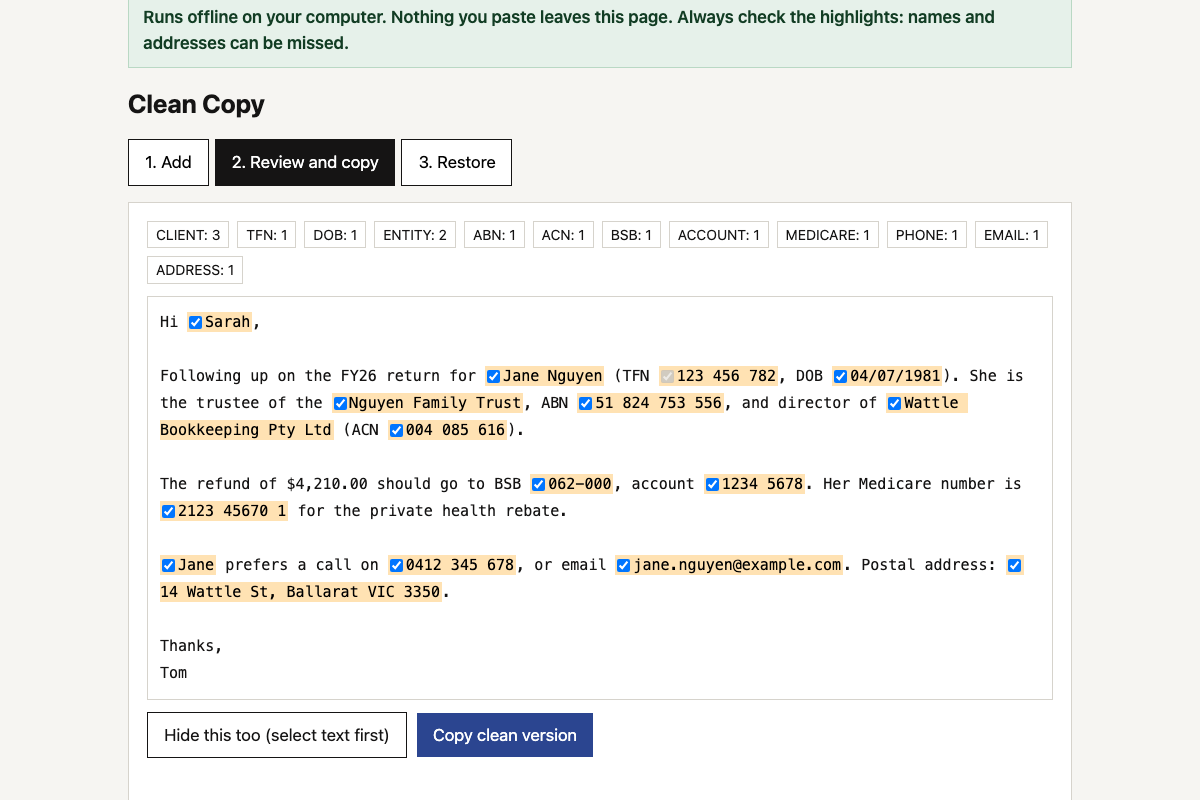 Client data redaction toolHides TFNs, ABNs, bank details, names and addresses before you use AI on client work, then puts the real details back into the answer.
-
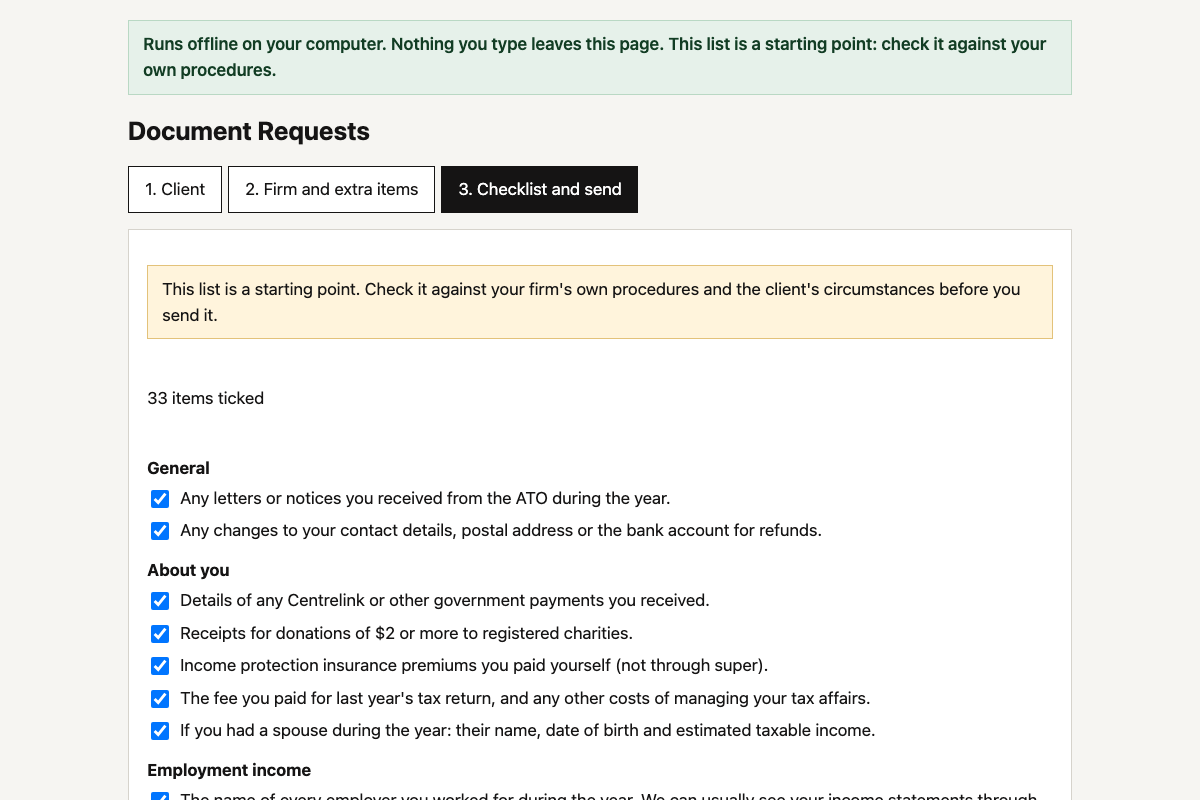 Client document request builderPick the client type and what applies, and get a tailored list of what to send you for this year’s tax return, as a ready-to-send email.
-
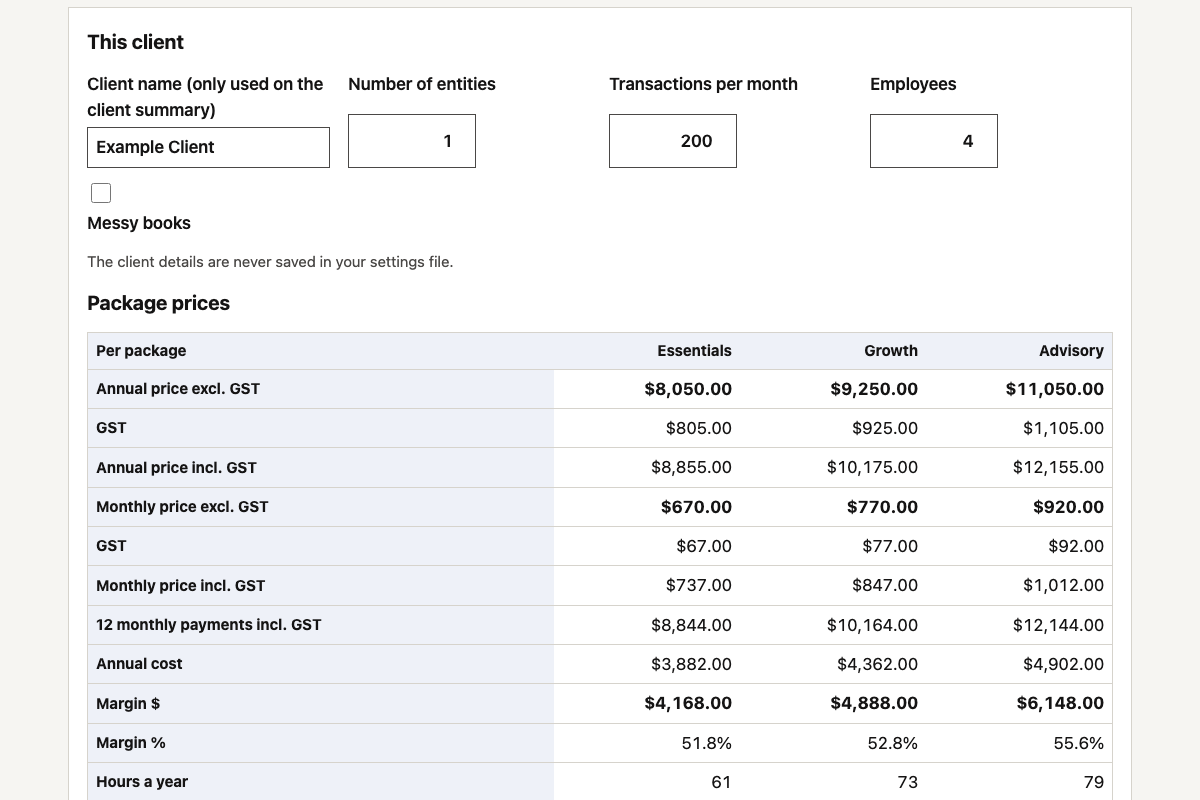 Fixed-fee package calculatorPrice your fixed-fee packages from your own team costs and hours, and see the margin and effective hourly rate on every one before you quote.