Client data redaction tool
Hides TFNs, ABNs, bank details, names and addresses before you use AI on client work, then puts the real details back into the answer.
- About 10 minutes
- Works offline
- Tested 11 Nov 2026
Free. Opens in Chrome, Edge or Safari. Read the disclaimer first.
Refund for Jane Nguyen, TFN 123 456 782, of the Nguyen Family Trust (ABN 51 824 753 556). Pay $4,210 to BSB 062-000, account 1234 5678. Call 0412 345 678.
Highlighted details are found on your computer. Switch to see what the AI gets.
What it does
So your team can use AI on real client work without sending client details to an AI company.
- 01 Finds client details TFNs, ABNs, bank details, names, addresses and more, on your computer.
- 02 Swaps in placeholders Jane Nguyen becomes [CLIENT_1], the same label every time, so the AI can still follow the work.
- 03 Copy the clean version Paste it into Claude, ChatGPT or Copilot. Only placeholders leave your computer.
- 04 Restores the answer Paste the AI’s reply back and the real details go back in.
What it recognises
- Confirmed by maths
- Matched by pattern
- Found by rules: check these
- TFN (Confirmed by maths)
- ABN (Confirmed by maths)
- ACN (Confirmed by maths)
- Medicare number (Confirmed by maths)
- Card number (Confirmed by maths)
- BSB and account (Matched by pattern)
- Phone and email (Matched by pattern)
- Date of birth (Matched by pattern)
- Centrelink CRN (Matched by pattern)
- Licence and passport (Matched by pattern)
- Street address (Found by rules: check these)
- Business and trust names (Found by rules: check these)
- People’s names (Found by rules: check these)
Where your data goes
The AI only sees the prompt and an invented sample client. Your client files only ever go into the finished tool, which runs on your computer with the internet blocked.
That’s all the AI ever sees. It writes the tool and hands back the code.
A rule inside the file blocks every internet connection. Nothing is saved, and closing the tab wipes it.
For beginners · about 10 minutes
Build your own in five steps
-
Step 1: Turn off model training
Claude: Settings › Privacy. ChatGPT: Settings › Data controls.
-
Step 2: Give the prompt to Claude or ChatGPT
It builds the whole tool in one answer. If it stops, reply “continue”.
The prompt
Opens a new chat with the prompt. Long prompts go on your clipboard: paste into the chat that opens.
Works without client data. Don't paste client names, tax file numbers or ledgers into an AI tool your firm hasn't approved for them. AI data safety playbook.
Read the full prompt (7,935 characters)
I'm an Australian accountant or bookkeeper. Build me a private redaction tool that I'll run on my own computer, so I can use AI on client work without sending client details to the AI. Build the whole thing in one go, using the defaults below. Don't ask me questions first. SAFETY RULES (these override everything else) 1. Never ask me to paste real client data into this chat. While we build and test, use only made-up sample data that you write yourself. 2. Deliver ONE self-contained HTML file that I save and open from my own computer. No server, no account, no installation. 3. The file must make no network connections of any kind. No external scripts, libraries, fonts, images, CDNs, analytics or tracking. No fetch, XMLHttpRequest, WebSocket, sendBeacon or EventSource. No forms that submit anywhere. No links that carry data. 4. Put this exact Content-Security-Policy meta tag first in the <head>, so the browser itself blocks any connection: <meta http-equiv="Content-Security-Policy" content="default-src 'none'; script-src 'unsafe-inline'; style-src 'unsafe-inline'; img-src data:; connect-src 'none'; form-action 'none'; base-uri 'none'"> 5. Never store client data. Keep the text and the placeholder list in memory only. Don't use localStorage, sessionStorage, IndexedDB or cookies. Closing the tab must wipe everything. Add a "Clear everything" button and a warning before the tab closes if anything is loaded. WHAT IT DOES Three tabs: 1. Add, 2. Review and copy, 3. Restore. 1. Add: a large box to paste text, plus an "Open file" button for .txt and .csv files (read with FileReader, locally). Show a note: "For Excel, save as CSV first. For Word or PDF, copy the text and paste it here." Also add an "Always hide these names" box, one name per line, for client and business names I want hidden every time. 2. Review and copy: show the text with every detected detail highlighted. Each highlight has a tick box so I can untick a false match. I can select any other text and click "Hide this too". A summary lists the counts by type. A "Copy clean version" button copies the text with each detail swapped for a placeholder. 3. Restore: a box where I paste the AI's answer. It swaps every placeholder back to the real detail, and a "Copy restored text" button copies the result. PLACEHOLDERS - Format: [TYPE_N], for example [CLIENT_1], [TFN_1], [ABN_2], [ACCOUNT_1]. - The same real value always gets the same placeholder, ignoring spacing differences ("123 456 782" and "123456782" are the same TFN). - Restore must work even if the AI drops the square brackets or changes the case (CLIENT_1, client_1). - Leave dollar amounts, percentages and ordinary dates alone. Add a "Hide dollar amounts" switch, off by default, that turns amounts into [AMOUNT_N]. WHAT TO DETECT (Australia). Use these exact rules. - TFN: 9 digits (spaces allowed). Weights 1,4,3,7,5,8,6,9,10. Valid if the weighted sum is divisible by 11. Also accept 8-digit TFNs with weights 10,7,8,4,6,3,5,1, valid if the weighted sum is divisible by 11. TFNs are always hidden and can't be unticked. - ABN: 11 digits (spaces allowed). Subtract 1 from the first digit. Weights 10,1,3,5,7,9,11,13,15,17,19. Valid if the weighted sum is divisible by 89. - ACN or ARBN: 9 digits. Weights 8,7,6,5,4,3,2,1 on the first 8 digits. Check digit = (10 - (sum mod 10)) mod 10, and it must equal the 9th digit. Only treat a 9-digit number as an ACN if it passes this check AND fails the TFN check, OR if it sits within 15 characters of "ACN" or "ARBN". - Medicare number: 10 digits (an 11th digit, the card position number, is optional). First digit 2 to 6. Weights 1,3,7,9,1,3,7,9 on the first 8 digits. Sum mod 10 must equal the 9th digit. - Bank card: 13 to 19 digits that pass the Luhn check. - BSB: 6 digits as NNN-NNN or NNN NNN, or 6 digits within 20 characters of "BSB". - Bank account number: 6 to 10 digits within 25 characters of "account", "acct", "acc no" or "a/c", or in a CSV column whose header contains "account". - Email addresses. - Phone numbers: AU mobiles (04xx xxx xxx, +61 4xx xxx xxx), landlines ((0x) xxxx xxxx, +61 x xxxx xxxx) and 13/1300/1800 numbers. - Date of birth: any date within 20 characters of "DOB", "D.O.B", "date of birth" or "born", or in a CSV column whose header contains "birth" or "DOB". - Centrelink CRN: 9 digits followed by a letter (for example 123 456 789A). - Driver licence and passport: an alphanumeric code within 20 characters of "licence", "license", "DL" or "passport". - Street addresses: a number, a street name and a street type (St, Street, Rd, Road, Ave, Avenue, Dr, Drive, Ct, Court, Pl, Place, Cres, Crescent, Hwy, Pde, Tce, Lane, Way, Bvd), optionally followed by a suburb, a state (NSW, VIC, QLD, WA, SA, TAS, ACT, NT) and a 4-digit postcode. Also PO Box addresses. - Business and trust names: capitalised words ending in Pty Ltd, Pty Limited, Limited, Ltd, Trust, Family Trust, Super Fund, SMSF, Partnership or "& Co". - People's names: (a) everything in the "Always hide these names" box, wherever it appears, ignoring case; (b) one to three capitalised words after Mr, Mrs, Ms, Miss, Dr, Dear, Hi or Attn; (c) names in a CSV column whose header contains "name", "client", "contact" or "employee". Once a name is found, hide it everywhere else in the text too, including the first name and the surname on their own. - Read a number as one whole run of digits, allowing single spaces or hyphens between groups. Never test a piece of a longer run (the 9 digits inside an 11-digit ABN are not a TFN). - When two detections overlap, keep the longer one. - Windows line endings: CSV files saved on Windows end each line with \r\n. Convert every \r\n (and any lone \r) to \n before detecting anything, so highlight positions line up; otherwise the end of each account number and date stays visible. Add a self-test line that redacts a made-up CSV with \r\n endings and confirms nothing is left. ACCURACY AND HONESTY - Show this permanently at the top: "Runs offline on your computer. Nothing you paste leaves this page. Always check the highlights: names and addresses can be missed." - Add a "Run self-test" button. It checks the rules against made-up numbers and shows pass or fail for each. Include: TFN 123 456 782 (valid) and 123 456 789 (invalid); ABN 51 824 753 556 (valid) and 51 824 753 557 (invalid); ACN 004 085 616 (valid); Medicare 2123 45670 1 (valid); card 4111 1111 1111 1111 (valid). Then it redacts the sample (with its client name in the always-hide list), confirms no sample detail is left in the clean text (check the TFN, ABN, phone, email, the client's name and the whole street address including its state and postcode), and confirms that restoring the clean text gives back the original exactly. - Add a "Load sample" button that fills the Add tab with a made-up client email containing every detail type above, and puts the sample client's name in the "Always hide these names" box, so I can try the tool without any real data. DESIGN Plain, clear and calm. Large text, a readable font from the system font stack (no web fonts), high contrast, good keyboard focus states, and layouts that work on a laptop screen. Show highlighted details as a soft colour behind the text, with the type label on hover. Only one tab shows at a time: include [hidden] { display: none !important; } so layout styles can't override it. WHEN YOU'RE DONE 1. Give me the complete HTML file in a single code block, with nothing left out or abbreviated. 2. Tell me how to save it: copy it into a plain-text file named clean-copy.html, save it to my computer, and open it in Chrome, Edge or Safari. 3. Tell me how to prove it's offline: turn off Wi-Fi, open the file, click "Load sample" and "Run self-test", and check that everything still works and every test passes. 4. Remind me to test it on the sample first, and only then use it on real client files on my own computer, never in this chat. -
Step 3: Save the code as
clean-copy.htmlMac: TextEdit, then Format › Make Plain Text. Windows: Notepad, save as “All files”.
-
Step 4: Open it offline and run the self-test
Wi-Fi off, double-click the file, then Load sample and Run self-test. Every line says Pass.
-
Step 5: Check it’s safe
New chat: paste this check, then your file’s code underneath. Every check says PASS.
- Internet blocked by the browser
- No code that sends data
- Nothing saved on the computer
- No hidden sending on close
- Wiped when you close the tab
- A self-test on made-up data
- No scrambled or hidden code
The safety check
Opens a new chat with the check. Paste your file’s full code at the end.
Works without client data. Don't paste client names, tax file numbers or ledgers into an AI tool your firm hasn't approved for them. AI data safety playbook.
Read the full prompt (1,488 characters)
Check a tool I built with AI before I use it at my accounting firm. The complete code of the HTML file is pasted below my questions. It contains no client data. Don't change the tool. Just check it and report.

Check each of these and answer PASS or FAIL with one line of evidence (quote the line of code):

1. Internet blocked: the first tag in <head> is a Content-Security-Policy meta tag containing connect-src 'none', default-src 'none' and form-action 'none'.
2. No network code: no fetch, XMLHttpRequest, WebSocket, EventSource, navigator.sendBeacon, import(), or <script src>, <link href>, <img src> or <iframe> pointing to another site. A Blob URL used for downloading a file is fine.
3. No storage: no localStorage, sessionStorage, indexedDB, document.cookie or caches.
4. No hidden sending: no form with an action, no links or window.open that carry entered text in the address, and nothing that sends data when the page closes.
5. Wipes on close: everything is held in memory only, and there is a "Clear everything" button.
6. Self-test: there is a "Run self-test" button and it uses made-up data only.
7. Nothing obfuscated: no long encoded strings, eval, new Function or code that builds code from text.

Then give an overall verdict: SAFE TO USE if every check passes, or NOT SAFE with exactly what to fix. If anything fails, write the corrected lines of code, and tell me to ask the AI that built the tool to fix it and give me the complete file again.

Here is the code:
Done. Open the file whenever you need it. Real client data only ever goes into the tool, never into a chat. Close the tab and everything is wiped.
Advanced
When you’re ready for more
Excel and Word versionOpens .xlsx and .docx directly and gives back a clean copy. Same safety rules, a longer prompt.
Builds the same tool, but it opens Excel workbooks and Word documents straight from your computer, still offline, using only what is built into your browser. You get a clean .xlsx or .docx back, plus CSV and text versions. Before offering the clean file, it reads its own output back and refuses it if any hidden detail is still inside. Files with macros or passwords are refused with a plain message.
Download clean-copy-office.html · 71 KBExcel and Word version
The prompt for this build.
Works without client data. Don't paste client names, tax file numbers or ledgers into an AI tool your firm hasn't approved for them. AI data safety playbook.
Read the full prompt (26,289 characters)
I'm an Australian accountant or bookkeeper. Build me a private redaction tool that I'll run on my own computer, so I can use AI on client work without sending client details to the AI. Build the whole thing in one go, using the defaults below. Don't ask me questions first.

SAFETY RULES (these override everything else)
1. Never ask me to paste real client data into this chat. While we build and test, use only made-up sample data that you write yourself.
2. Deliver ONE self-contained HTML file that I save and open from my own computer. No server, no account, no installation.
3. The file must make no network connections of any kind. No external scripts, libraries, fonts, images, CDNs, analytics or tracking. No fetch, XMLHttpRequest, WebSocket, sendBeacon or EventSource. No forms that submit anywhere. No links that carry data.
4. Put this exact Content-Security-Policy meta tag first in the <head>, so the browser itself blocks any connection:
   <meta http-equiv="Content-Security-Policy" content="default-src 'none'; script-src 'unsafe-inline'; style-src 'unsafe-inline'; img-src data:; connect-src 'none'; form-action 'none'; base-uri 'none'">
5. Never store client data. Keep the text and the placeholder list in memory only. Don't use localStorage, sessionStorage, IndexedDB or cookies. Closing the tab must wipe everything. Add a "Clear everything" button and a warning before the tab closes if anything is loaded.

WHAT IT DOES
Three tabs: 1. Add, 2. Review and copy, 3. Restore.

1. Add: a large box to paste text, plus an "Open file" button for .txt, .csv, .xlsx and .docx files (read with FileReader, locally; Excel and Word work as described in FILES below). Show a note: "Opens Excel (.xlsx) and Word (.docx) files up to 20 MB, on this computer. For PDF, copy the text and paste it here. For older .xls or .doc files, save them as .xlsx or .docx first." Also add an "Always hide these names" box, one name per line, for client and business names I want hidden every time.

2. Review and copy: show the text with every detected detail highlighted. Each highlight has a tick box so I can untick a false match. I can select any other text and click "Hide this too". A summary lists the counts by type. A "Copy clean version" button copies the text with each detail swapped for a placeholder.

3. Restore: a box where I paste the AI's answer. It swaps every placeholder back to the real detail, and a "Copy restored text" button copies the result.

PLACEHOLDERS
- Format: [TYPE_N], for example [CLIENT_1], [TFN_1], [ABN_2], [ACCOUNT_1].
- The same real value always gets the same placeholder, ignoring spacing differences ("123 456 782" and "123456782" are the same TFN).
- Restore must work even if the AI drops the square brackets or changes the case (CLIENT_1, client_1).
- Leave dollar amounts, percentages and ordinary dates alone. Add a "Hide dollar amounts" switch, off by default, that turns amounts into [AMOUNT_N].

WHAT TO DETECT (Australia). Use these exact rules.
- TFN: 9 digits (spaces allowed). Weights 1,4,3,7,5,8,6,9,10. Valid if the weighted sum is divisible by 11. Also accept 8-digit TFNs with weights 10,7,8,4,6,3,5,1, valid if the weighted sum is divisible by 11. TFNs are always hidden and can't be unticked.
- ABN: 11 digits (spaces allowed). Subtract 1 from the first digit. Weights 10,1,3,5,7,9,11,13,15,17,19. Valid if the weighted sum is divisible by 89.
- ACN or ARBN: 9 digits. Weights 8,7,6,5,4,3,2,1 on the first 8 digits. Check digit = (10 - (sum mod 10)) mod 10, and it must equal the 9th digit. Only treat a 9-digit number as an ACN if it passes this check AND fails the TFN check, OR if it sits within 15 characters of "ACN" or "ARBN".
- Medicare number: 10 digits (an 11th digit, the card position number, is optional). First digit 2 to 6. Weights 1,3,7,9,1,3,7,9 on the first 8 digits. Sum mod 10 must equal the 9th digit.
- Bank card: 13 to 19 digits that pass the Luhn check.
- BSB: 6 digits as NNN-NNN or NNN NNN, or 6 digits within 20 characters of "BSB".
- Bank account number: 6 to 10 digits within 25 characters of "account", "acct", "acc no" or "a/c", or in a CSV column whose header contains "account".
- Email addresses.
- Phone numbers: AU mobiles (04xx xxx xxx, +61 4xx xxx xxx), landlines ((0x) xxxx xxxx, +61 x xxxx xxxx) and 13/1300/1800 numbers.
- Date of birth: any date within 20 characters of "DOB", "D.O.B", "date of birth" or "born", or in a CSV column whose header contains "birth" or "DOB".
- Centrelink CRN: 9 digits followed by a letter (for example 123 456 789A).
- Driver licence and passport: an alphanumeric code within 20 characters of "licence", "license", "DL" or "passport".
- Street addresses: a number, a street name and a street type (St, Street, Rd, Road, Ave, Avenue, Dr, Drive, Ct, Court, Pl, Place, Cres, Crescent, Hwy, Pde, Tce, Lane, Way, Bvd), optionally followed by a suburb, a state (NSW, VIC, QLD, WA, SA, TAS, ACT, NT) and a 4-digit postcode. Also PO Box addresses.
- Business and trust names: capitalised words ending in Pty Ltd, Pty Limited, Limited, Ltd, Trust, Family Trust, Super Fund, SMSF, Partnership or "& Co".
- People's names: (a) everything in the "Always hide these names" box, wherever it appears, ignoring case; (b) one to three capitalised words after Mr, Mrs, Ms, Miss, Dr, Dear, Hi or Attn; (c) names in a CSV column whose header contains "name", "client", "contact" or "employee". Once a name is found, hide it everywhere else in the text too, including the first name and the surname on their own.
- Read a number as one whole run of digits, allowing single spaces or hyphens between groups. Never test a piece of a longer run (the 9 digits inside an 11-digit ABN are not a TFN).
- When two detections overlap, keep the longer one.

ACCURACY AND HONESTY
- Show this permanently at the top: "Runs offline on your computer. Nothing you paste leaves this page. Always check the highlights: names and addresses can be missed."
- Add a "Run self-test" button. It checks the rules against made-up numbers and shows pass or fail for each. Include: TFN 123 456 782 (valid) and 123 456 789 (invalid); ABN 51 824 753 556 (valid) and 51 824 753 557 (invalid); ACN 004 085 616 (valid); Medicare 2123 45670 1 (valid); card 4111 1111 1111 1111 (valid). Then it redacts the sample (with its client name in the always-hide list), confirms no sample detail is left in the clean text (check the TFN, ABN, phone, email, the client's name and the whole street address including its state and postcode), and confirms that restoring the clean text gives back the original exactly. Add the file tests listed under FILES.
- Add a "Load sample" button that fills the Add tab with a made-up client email containing every detail type above, and puts the sample client's name in the "Always hide these names" box, so I can try the tool without any real data.

==================== FILES: EXCEL (.xlsx) AND WORD (.docx) ====================
This section adds to everything above. Every safety rule still applies, and everything here uses built-in browser features only: no library and no network. An .xlsx or .docx file is a ZIP file of XML files, so the tool unzips it, reads the XML, and zips it back up.

CHECKS BEFORE OPENING (show each message in plain words, in a box on the Add tab)
- Size: refuse anything over 20 MB (20 x 1024 x 1024 bytes): "This file is over 20 MB. Save a smaller copy (for example one sheet, or without pictures) and try again."
- Macros: refuse .xlsm, .xltm, .xlam, .docm and .dotm by name. Also refuse any file whose ZIP contains vbaProject.bin, or whose [Content_Types].xml contains "macroEnabled" (a renamed macro file): "Files with macros can't be opened here. In Excel or Word, save a copy as .xlsx or .docx first."
- Passwords: a password-protected .xlsx or .docx is not a ZIP. It starts with the bytes D0 CF 11 E0 A1 B1 1A E1. If an .xlsx or .docx starts with those bytes, or any ZIP entry has the encryption flag (bit 0 of its flags) set, say: "Remove the password in Excel or Word first, then save the file and try again."
- Older formats: .xls and .doc: "This is an older Excel or Word file. Save it as .xlsx or .docx first." .xlsb: "Save this workbook as .xlsx first."
- Anything else that isn't .txt, .csv, .xlsx or .docx: "This tool opens .txt, .csv, .xlsx and .docx files." A file named .xlsx that has no workbook inside (or .docx with no document): "This doesn't look like an Excel (or Word) file."
- Browser support: before opening .xlsx or .docx, check that DecompressionStream and CompressionStream exist and that new DecompressionStream('deflate-raw') and new CompressionStream('deflate-raw') don't throw. If not: "Opening Excel and Word files needs a current browser: Chrome or Edge, Safari 16.4 or later, or Firefox 113 or later. You can still save the file as CSV, or copy the text and paste it here." Text files and pasting keep working.

READING THE ZIP (no library)
- Read the file as an ArrayBuffer. All ZIP numbers are little-endian.
- Find the End of Central Directory record (signature 0x06054b50) by scanning backwards from 22 bytes before the end, at most 65,557 bytes back. Read the entry count (offset 10, 2 bytes) and the central directory offset (offset 16, 4 bytes). If either is 0xFFFF / 0xFFFFFFFF (ZIP64), refuse: "This file is too large or unusual to open here. Save it as CSV, or copy the text and paste it here."
- Walk the central directory entries (signature 0x02014b50). Offsets inside each entry: flags 8, method 10, time 12, date 14, CRC-32 16, compressed size 20, uncompressed size 24, name length 28, extra length 30, comment length 32, local header offset 42, name at 46 (UTF-8). The next entry starts at 46 + name + extra + comment lengths.
- For each entry, check the local header signature (0x04034b50) at its offset. The data starts at offset + 30 + the local name length (offset 26) + the local extra length (offset 28). Always take the sizes and CRC from the central directory: the local header can hold zeros when flag bit 3 (data descriptor) is set.
- Method 0 (stored): the bytes are the data. Method 8 (deflate): pipe the bytes through new DecompressionStream('deflate-raw') and read the stream to the end with its reader (don't use fetch or Response). Any other method: "This file uses compression the tool can't read."
- Check every unzipped entry: its length must equal the uncompressed size and its CRC-32 (polynomial 0xEDB88320, table based) must match. If not: "This file looks damaged. Open it in Excel or Word, save it again and retry."
- Refuse a file whose entries add up to more than 300 MB unzipped, or that has more than 20,000 entries (zip bombs).
- Decode XML with TextDecoder (UTF-8) and parse it with new DOMParser().parseFromString(text, 'application/xml'). Treat a parsererror element as a failed parse. Look elements up by namespace or local name, never by prefix (a file may use any prefix). Part names in a package ignore case.
- Find the main part from _rels/.rels (the relationship whose Type ends in /officeDocument), not by a fixed path. Resolve each relationship Target against the folder of the part that owns the .rels file; a Target starting with "/" is from the package root. Relationship ids are attributes with local name "id" in a relationships namespace.

EXCEL (.xlsx): TURN EACH SHEET INTO CSV
- Sheets: the sheet elements in the workbook part, in order: the name attribute, plus the relationship id that points (through the workbook's .rels) to the sheet's XML part. Only relationships of type /worksheet; skip chart sheets.
- Shared strings (the sharedStrings part, if any): for each si, join the text of every t element inside it, except t elements inside rPh (phonetic hints).
- Cells: each c element in sheetData, in file order. Its column comes from the letters in its r attribute (A=0 ... Z=25, AA=26); with no r, it's the next column in the row. The value depends on its t attribute: s = shared string at the index in v; inlineStr = the t text inside is (same rule as shared strings); str and e = the v text; b = TRUE or FALSE; d = the v text; no t (a number) = the v text exactly as written.
- Dates: Excel stores dates as numbers. Read the styles part: the numFmtId of each xf in cellXfs, plus any custom numFmt elements. A number cell whose s attribute points to an xf with a date format is a date: built-in ids 14 to 22, 27 to 36, 45 to 47 and 50 to 58, or a custom format code that still contains d, m or y after you remove anything in double quotes, anything in square brackets and any backslash-escaped character. Show it as DD/MM/YYYY, adding HH:MM when the format also contains h. Serial day 1 is 1 January 1900. For serials of 61 and above, the date is 30 December 1899 plus the serial in days; below 61, add one more day (Excel counts a 29 February 1900 that never existed). If workbookPr has date1904="1" or "true", the date is 1 January 1904 plus the serial.
- Build each sheet's CSV: only rows with at least one non-empty cell, in file order; every row padded with empty cells to the widest column that holds a value in that sheet. Put a cell in double quotes when it contains a comma, a double quote, a line break, or starts or ends with a space; double any quotes inside.
- Text layout: for each sheet, a line "Sheet: <sheet name>", then its CSV, then a blank line. This text goes in the paste box, read-only.
- The CSV-column rules (headers containing name, client, contact or employee; account; birth or DOB) apply to each sheet on its own: the first CSV row under each "Sheet:" line is that sheet's header row. Use the cell positions you recorded while building the text; don't re-split the text with commas, because quoted cells can contain commas and line breaks. A name found in any sheet is hidden in every sheet, as before.

WORD (.docx): TURN THE DOCUMENT INTO PLAIN TEXT
- Parts: the main document, then every part that its .rels links with a Type ending in /header, /footer, /footnotes, /endnotes or /comments, in that order (headers and footers sorted by number).
- Before reading any part: delete every mc:Fallback element (the namespace contains "markup-compatibility"). They hold a second copy of text boxes. Accept tracked changes: delete every w:del and w:moveFrom element (deleted text) and replace every w:ins and w:moveTo element with its own children (inserted text stays). Do exactly the same before reading and before writing, so both see the same paragraphs.
- Paragraphs: every w:p element, in document order. A paragraph's text comes from the children of its w:r runs, in order: w:t gives its text, w:tab a tab, w:br and w:cr a line break, w:noBreakHyphen a hyphen. Skip anything inside a nested w:p (text boxes are their own paragraphs), and skip w:tab elements that aren't directly inside a run (tab stop settings). w:instrText (field codes) and w:delText are not text.
- Text layout: the main document's paragraphs, one per line. Then for each other part that has any text: a blank line, a label line ("=== Header ===", "=== Footer ===", "=== Footnotes ===", "=== Endnotes ===" or "=== Comments ==="), then its paragraphs, one per line.
- If the document had tracked changes, say so: "This document had tracked changes. The clean copy keeps the insertions and drops the deletions."

UNITS (the link between the text and the file)
- While building the text, record every paragraph, every non-empty cell and every sheet name as a unit: where it starts and ends in the text, its value, and where it lives in the file (part name and position in the list of c or w:p elements). For a quoted CSV cell, the unit is the part inside the quotes.
- Detection runs on the whole text, exactly as for pasted text. Then split any detection that crosses a unit boundary into one detection per unit it touches, trimming spaces from each piece and dropping empty pieces. Pieces that fall outside every unit (commas, line breaks, the "Sheet:" and "===" labels) are dropped. Do the same after "Hide this too". With nothing crossing a unit, each unit's clean value is simply that stretch of the clean text.
- When a file is loaded, show its type and the number of sheets or paragraphs, make the paste box read-only, and add a "Paste text instead" button that unloads the file. "Load sample" and "Clear everything" also unload it. Never show or reuse the original file name in anything the tool produces: it often contains the client's name.

OUTPUT
- "Copy clean version" works as before: it copies the clean text (the CSV text for a workbook, the plain text for a document).
- Excel: one "Download clean CSV" button per sheet (files clean-copy-sheet-1.csv, clean-copy-sheet-2.csv and so on), plus "Download clean .xlsx".
- Word: "Download clean .txt" (clean-copy.txt) and "Download clean .docx".
- Every download is a Blob made in the page and saved with URL.createObjectURL and an a element with the download attribute; revoke the URL afterwards. Nothing is sent anywhere.

BUILDING THE CLEAN .xlsx OR .docx (write the same ZIP back)
Rebuild the file from the original ZIP each time the button is pressed, so it reflects the current tick boxes.
- Excel cells: for each cell unit, work out its clean value (for a quoted CSV cell, turn each "" back into "). If it differs from the original value, rewrite the cell as an inline string: remove its children, set t="inlineStr", and add <is><t xml:space="preserve">clean value</t></is>, created with createElementNS in the sheet's namespace and with the cell's prefix. Keep its s attribute (formatting).
- Excel formulas: remove every f element in every sheet, so formulas become their last calculated values (formulas can contain names in quotes). Any cell left with t="str" becomes an inline string with the same text. Delete xl/calcChain.xml, its relationship and its Override in [Content_Types].xml.
- Excel shared strings: rebuild the sharedStrings part so it holds only the strings still used by unchanged cells, in order of first use, and renumber those cells' v values. Update count and uniqueCount. The original strings of changed cells must not stay in the file.
- Excel sheet names: set each sheet's name to its clean value with the square brackets removed (Excel forbids [ ] : \ / ? * in sheet names; turn : \ / ? * into spaces), at most 31 characters, not empty, and unique (add " (2)" and so on). Change only the names that changed.
- Word paragraphs: for each paragraph unit whose clean value differs, go through that paragraph's text pieces (w:t, w:tab, w:br, w:cr, w:noBreakHyphen, as above) from the last detection to the first. Put the placeholder into the first w:t the detection touches, cut the covered characters out of that and every later w:t it touches, and remove any w:tab, w:br, w:cr or w:noBreakHyphen inside it. Set xml:space="preserve" (in the XML namespace) on every w:t you change. Names split across runs ("Jane Ngu" + "yen") are handled this way.
- Everywhere else: the file holds text the tool doesn't show (document properties such as the title, mailto: links in relationship files, field codes, Excel comments, chart and pivot caches, header and footer text in sheet settings, defined names). In every XML part, and in the non-text areas of the parts you edited, replace each hidden value (each ticked detection's value, case-insensitive, plus the first name and surname of each hidden person on their own, even when the text only has them together) with its placeholder. Numbers (TFN, ABN, ACN, Medicare, card, BSB, account, phone, CRN) match only as a whole number, with or without spaces or hyphens between the digits. Text values of 4 or more characters (names, emails, entities, addresses) match anywhere, even inside a longer word ("JaneList" in a defined name) or URL-encoded (a space written as %20 or +, an @ as %40, as in mailto:...?subject=Jane%20Nguyen); 3-letter values match only as whole words. Use the placeholder WITHOUT square brackets, for example CLIENT_1, so formulas and sheet references stay valid. Restore already accepts placeholders without brackets. Do this in text and in attribute values, but skip namespace declarations and id attributes (local names ending in "id" or "Id", or starting with "rsid"). Don't touch what the tool shows and the user reviewed: cells inside sheetData, the shared strings part, the sheet name attributes in the workbook, and the text of w:t elements. Replace longer values first. If a part doesn't parse as XML, do the same replacement on its raw text, using XML-escaped values. Only re-write a part if something in it changed.
- Don't build the .xlsx or .docx at all if the file has embedded objects (a path containing "embeddings/" or "activeX/"): the tool can't look inside them. Say: "This file has embedded objects the tool can't check, so download the clean CSV (or .txt) instead." If the file has pictures (a path containing "media/"), warn: "Pictures are copied as they are. The tool can't read text inside pictures, so remove any that show client details."
- Writing the ZIP: keep the original entries in their original order, with their original name bytes, times and dates. An unchanged entry copies its original compressed bytes, method, CRC and sizes. A changed entry is UTF-8 encoded, compressed with new CompressionStream('deflate-raw'), method 8, with the CRC-32 of the uncompressed bytes. In both, clear flag bit 3 (the sizes go in the local header) and write no extra fields; a changed entry keeps only flag bit 11 (UTF-8 names). Then write the central directory (version 20, local header offsets) and the End of Central Directory record. Every serialized XML part must start with exactly one <?xml version="1.0" encoding="UTF-8" standalone="yes"?>. Chrome and Edge's XMLSerializer writes a declaration itself and Firefox and Safari's don't, so remove any declaration from the start of XMLSerializer's output, then put this one in front. Two declarations make the file unreadable.
- Check before offering the file: read the new ZIP back with the same reader (CRC checks included). The same units must come back in the same order, each equal to its expected clean value (for sheet names, the cleaned name), and no hidden value may appear in any XML part outside the reviewed areas (same matching as above). Only if every check passes, start the download as clean-copy.xlsx or clean-copy.docx. If any check fails, don't offer the file. Say: "The clean Excel (or Word) file didn't pass its safety check, so use the CSV (or .txt) download instead." The CSV and .txt downloads are always available, so the safe route never depends on the ZIP writer.
- Tell the user, next to the download buttons: formulas are replaced by their values, tracked changes are accepted, and the file keeps its layout and formatting but should be opened and checked before it goes anywhere.

FILE TESTS (add to "Run self-test")
- CRC-32 of the text 123456789 is CBF43926.
- ZIP round trip: write a ZIP with one stored and one deflated entry with your own writer, read it back, and get the same bytes. Change one byte of the deflated entry and check the reader reports the file as damaged.
- The checks: a name ending .xlsm is refused, a file starting D0 CF 11 E0 A1 B1 1A E1 gets the password message, a 21 MB file gets the size message.
- Build a tiny .xlsx in memory from made-up data with your own ZIP writer and XML written in the test: [Content_Types].xml, _rels/.rels, xl/workbook.xml (sheet "Clients"), its .rels, xl/styles.xml (one date format), xl/sharedStrings.xml (including the client name split into two rich-text runs) and one sheet with the columns Client name, TFN, Account number, DOB and Note. The row holds Jane Nguyen (shared string), 123 456 782 (inline string), 12345678 (number), 29771 (a date, shown as 04/07/1981) and a formula cell whose value is "Call Jane Nguyen". Add docProps/core.xml with the title "Jane Nguyen FY26", and a defined name "JaneList" in the workbook. Store one entry and deflate the rest. Read it back and check the CSV text and the date. Redact it (with Jane Nguyen in the always-hide list) and check that Jane, Nguyen, the TFN and the account number are gone from the clean text. Build the clean .xlsx, read it back, check it passes its own check, and check that none of those values appears in any part of the ZIP, with or without spaces.
- Build a tiny .docx the same way: a paragraph with "Jane Ngu" and "yen" in separate runs, a line "TFN", a tab, "123 456 782", an email inside a hyperlink whose .rels Target is mailto:jane.nguyen@example.com?subject=Jane%20Nguyen, a tracked deletion holding the TFN, a text box with a Fallback copy of the name, a header with the name and TFN, and docProps/core.xml with the name in the title. Check the text, redact it, build the clean .docx, and check the same things.
- Check that restoring each file's clean text gives back its text exactly.
- If this browser lacks DecompressionStream, CompressionStream or DOMParser, show the file tests as "Skipped" with the reason, not as failures.
- Also fix this while you're here: CSV files saved on Windows end each line with \r\n. Count those two characters when working out where each CSV cell sits in the text, or every highlight after the first line is off and the end of each account number and date stays visible. Add a self-test for it.
================================================================================

DESIGN
Plain, clear and calm. Large text, a readable font from the system font stack (no web fonts), high contrast, good keyboard focus states, and layouts that work on a laptop screen. Show highlighted details as a soft colour behind the text, with the type label on hover. Only one tab shows at a time: include [hidden] { display: none !important; } so layout styles can't override it.

WHEN YOU'RE DONE
1. Give me the complete HTML file in a single code block, with nothing left out or abbreviated.
2. Tell me how to save it: copy it into a plain-text file named clean-copy.html, save it to my computer, and open it in Chrome, Edge or Safari.
3. Tell me how to prove it's offline: turn off Wi-Fi, open the file, click "Load sample" and "Run self-test", and check that everything still works and every test passes.
4. Remind me to test it on the sample first, and only then use it on real client files on my own computer, never in this chat.
Tested: 11 Nov 2026: all 31 self-tests and 46 end-to-end checks pass in Chrome and Safari’s engine, with made-up workbooks and letters, and no network requests. The clean files opened in Apple Numbers and macOS. Not yet tried in Firefox or opened in Microsoft Excel and Word. Names inside Word tables are not detected yet: add them to the "Always hide" list.
Claude Desktop extension (beta)Claude can only open client files through the redaction tool. About an hour with Claude Code.
A local add-on for Claude Desktop. Point it at one client folder: every file Claude opens arrives with details swapped for placeholders, and when Claude saves its work, the real details go back in on your computer. Claude only hears where the file was saved. It doesn’t cover text you type into the chat, or a folder Claude can also reach through another tool.
Download clean-copy-firewall.mcpb · 2262 KBClaude Desktop extension (beta)
The prompt for this build.
Works without client data. Don't paste client names, tax file numbers or ledgers into an AI tool your firm hasn't approved for them. AI data safety playbook.
Read the full prompt (15,281 characters)
BUILD YOUR OWN CLAUDE DESKTOP REDACTION FIREWALL
For advanced members. About an hour, most of it Claude Code working while you watch.

WHAT YOU ARE BUILDING
A small Claude Desktop extension (a .mcpb file) that sits between Claude and one folder of client files on your computer. Claude can list and open the .txt, .csv and .md files in that folder, but every file reaches Claude with TFNs, ABNs, names, addresses and the other details below swapped for placeholders such as [CLIENT_1] and [TFN_1]. When Claude has written something, it asks the extension to save it. The extension puts the real details back and writes the file into an "AI output" folder. Claude is only told where the file was saved. It never sees the restored text.

THE LIMIT, IN PLAIN WORDS
The extension only protects files Claude opens through it. Anything you type or paste into the chat goes to Claude exactly as you typed it. So don't paste client details into the chat, and don't attach client files to the chat directly. Put them in the folder and ask Claude to open them with the extension.
The same goes for any other way Claude can reach the folder. If you've also given Claude the Filesystem extension, Claude in Chrome or another file tool for that folder, Claude can read the real files that way. Keep the client folder out of every other tool.
It also can't catch everything. It finds a person's name only when the name sits after Mr, Mrs, Ms, Dr, Dear, Hi or Attn, sits in a CSV name column, or is in your "Always hide these names" list. Put your clients' names in that list. Check the first few outputs yourself.

BEFORE YOU START
1. Install Node.js (the LTS version) from nodejs.org. Open Terminal (Mac) or PowerShell (Windows), type node -v and press Enter. You should see v20 or higher.
2. Install Claude Code. Follow the steps at docs.claude.com/claude-code.
3. Make an empty folder for the project, for example "clean-copy-firewall" in your Documents folder. In Terminal, go into it (cd Documents/clean-copy-firewall) and type claude to start Claude Code there.
4. Don't put any client files in this project folder. Claude Code can read everything in the folder it runs in.

SAFETY RULES FOR THE BUILD
- Never paste real client data into Claude Code. Everything you test with is made up.
- Claude Code writes its own made-up test files. It uses the published test numbers below, not real ones.
- The finished extension makes no network connections.
- It reads only the one folder you choose when you install it.
- Claude never sees the restored text.

PASTE THIS INTO CLAUDE CODE
----------------------------------------------------------------------
Build a Claude Desktop extension (.mcpb, an MCP Bundle) in this folder. It is a local redaction firewall for an Australian accounting firm. Build it in one go using the defaults below, then test it and pack it. Don't ask me questions first. Don't install anything into my Claude Desktop and don't change my settings: I'll install it myself.

SAFETY RULES (these override everything else)
1. Never ask me for real client data. Use only made-up fixtures you write yourself, in a temporary folder.
2. The server makes no network calls of any kind. As a second lock, the first module the server loads replaces net.connect, net.Socket.prototype.connect, tls.connect, http/https request and get, http2.connect, dgram.createSocket, the dns lookup and resolve functions (and dns.promises), and globalThis fetch, WebSocket and EventSource with functions that throw. Then call syncBuiltinESMExports() from node:module, or ES-module named imports keep the original functions.
3. No logs. Never write file contents, real values or restored text to stdout, stderr or any file except the saved output. Error messages are fixed sentences that never include file contents.
4. The placeholder map lives in memory only and dies with the process.
5. Claude never receives restored text. The save tool returns only "Saved to <relative path>".

READ THE CURRENT DOCS FIRST. Don't guess the manifest schema or the SDK API.
- The MCPB manifest spec: https://github.com/modelcontextprotocol/mcpb (MANIFEST.md and README.md). Use the manifest_version it states.
- The mcpb CLI: the @anthropic-ai/mcpb package (npx @anthropic-ai/mcpb validate and pack).
- The official MCP TypeScript SDK README: https://github.com/modelcontextprotocol/typescript-sdk. Use whichever packages it currently recommends for a stdio server and client. As of November 2026 that is @modelcontextprotocol/server for the server and @modelcontextprotocol/client for the test client, with zod v4. The older @modelcontextprotocol/sdk (v1) also works.
Record each source and the date you checked it in notes.md.

PROJECT LAYOUT
- manifest.json, package.json (type: module), src/engine.js, src/no-network.js, src/firewall.js, src/server.js, test/, notes.md.
- Server type "node". mcp_config runs node with ${__dirname}/src/server.js and passes the settings as environment variables.
- user_config:
  - client_folder: type "directory", required. The only folder the extension can read.
  - always_hide_names: type "string", sensitive, optional. Client and business names separated by commas.
  - hide_amounts: type "boolean", default false.
- An optional setting left blank can arrive as the literal text "${user_config.x}". Treat that as empty. If the folder is missing, the server must still start, and every tool must answer "No client folder is set" instead of crashing.

THE FOUR TOOLS
1. list_client_files: lists .txt, .csv and .md files under the client folder, up to 6 levels deep and 1,000 files. Skip dot-files, symbolic links and the "AI output" folder. Give each file an id (F1, F2 ...). File names can contain client names, so learn names from every listed file's contents first, then show each path through the redactor.
2. open_client_file(path): accepts an id or a relative path. Returns only the redacted text. Refuse, with a fixed message, any absolute path, drive letter, ".." or "." segment, dot-file, the "AI output" folder, other file types, files over 5 MB, and anything whose realpath differs from the resolved path (that catches a symbolic link anywhere in the path). Keep one placeholder map for the whole session, so the same TFN or name gets the same placeholder in every file. A name found in one file is hidden in every later file.
3. save_with_real_details(filename, text): the filename must be a plain name ending in .txt, .md or .csv, with no folders, no path characters and no leading dot. Restore the placeholders, create "AI output" inside the client folder (refuse if it is a link), and write with the "wx" flag so it never overwrites or follows a link: use "name (2).md" and so on if the name is taken. Return only "Saved to AI output/<name>".
4. redaction_summary: files opened this session and the count of different hidden details by type. No values.
Give each tool a clear description and annotations (readOnlyHint for the three read tools, openWorldHint false).

THE REDACTION ENGINE (src/engine.js: pure functions, no file, network or console access)
Export detect(text, {names, hideAmounts}), buildMap(items), redact(text, items), restore(text, map), the check-digit validators, a SAMPLE text, and createVault() for the session-wide map.

Placeholders
- Format: [TYPE_N], for example [CLIENT_1], [TFN_1], [ABN_2], [ACCOUNT_1].
- The same real value always gets the same placeholder, ignoring spacing differences ("123 456 782" and "123456782" are the same TFN). Names are compared ignoring case.
- Restore must work even if the AI drops the square brackets or changes the case (CLIENT_1, client_1). Unknown placeholders are left as they are.
- Leave dollar amounts, percentages and ordinary dates alone, unless hide_amounts is on: then amounts become [AMOUNT_N].

What to detect (Australia). Use these exact rules.
- TFN: 9 digits (spaces allowed). Weights 1,4,3,7,5,8,6,9,10. Valid if the weighted sum is divisible by 11. Also accept 8-digit TFNs with weights 10,7,8,4,6,3,5,1, valid if the weighted sum is divisible by 11, when they sit within 20 characters of "TFN" or "tax file".
- ABN: 11 digits (spaces allowed). Subtract 1 from the first digit. Weights 10,1,3,5,7,9,11,13,15,17,19. Valid if the weighted sum is divisible by 89.
- ACN or ARBN: 9 digits. Weights 8,7,6,5,4,3,2,1 on the first 8 digits. Check digit = (10 - (sum mod 10)) mod 10, and it must equal the 9th digit. Only treat a 9-digit number as an ACN if it passes this check AND fails the TFN check, OR if it sits within 15 characters of "ACN" or "ARBN".
- Medicare number: 10 digits (an 11th digit, the card position number, is optional). First digit 2 to 6. Weights 1,3,7,9,1,3,7,9 on the first 8 digits. Sum mod 10 must equal the 9th digit.
- Bank card: 13 to 19 digits that pass the Luhn check.
- BSB: 6 digits as NNN-NNN or NNN NNN, or 6 digits within 20 characters of "BSB".
- Bank account number: 6 to 10 digits within 25 characters of "account", "acct", "acc no" or "a/c", or in a CSV column whose header contains "account".
- Email addresses.
- Phone numbers: AU mobiles (04xx xxx xxx, +61 4xx xxx xxx), landlines ((0x) xxxx xxxx, +61 x xxxx xxxx) and 13/1300/1800 numbers.
- Date of birth: any date within 20 characters of "DOB", "D.O.B", "date of birth" or "born", or in a CSV column whose header contains "birth" or "DOB".
- Centrelink CRN: 9 digits followed by a letter (for example 123 456 789A).
- Driver licence and passport: an alphanumeric code containing a digit, within 20 characters of "licence", "license", "DL" or "passport".
- Street addresses: a number, a street name and a street type (St, Street, Rd, Road, Ave, Avenue, Dr, Drive, Ct, Court, Pl, Place, Cres, Crescent, Hwy, Pde, Tce, Lane, Way, Bvd), optionally followed by a suburb, a state (NSW, VIC, QLD, WA, SA, TAS, ACT, NT) and a 4-digit postcode. Also PO Box addresses.
- Business and trust names: capitalised words ending in Pty Ltd, Pty Limited, Limited, Ltd, Trust, Family Trust, Super Fund, SMSF, Partnership or "& Co".
- People's names: (a) everything in the always_hide_names setting, wherever it appears, ignoring case; (b) one to three capitalised words after Mr, Mrs, Ms, Miss, Dr, Dear, Hi or Attn; (c) names in a CSV column whose header contains "name", "client", "contact" or "employee". Once a name is found, hide it everywhere else too, including the first name and the surname on their own.
- Read a number as one whole run of digits, allowing single spaces or hyphens between groups. Never test a piece of a longer run (the 9 digits inside an 11-digit ABN are not a TFN).
- When two detections overlap, keep the longer one.

TESTS (use node:test, and run them all before you finish)
Engine:
- TFN 123 456 782 valid and 123 456 789 invalid; ABN 51 824 753 556 valid and 51 824 753 557 invalid; ACN 004 085 616 valid; Medicare 2123 45670 1 valid; card 4111 1111 1111 1111 valid.
- A made-up sample client email containing every detail type, with the client's name in the names list. Check that no TFN, ABN, ACN, Medicare, BSB, account, DOB, phone, email, name or any part of the street address (state and postcode included) is left in the clean text, and that restoring the clean text gives back the original exactly.
- Restore works without brackets and in lower case. The 9 digits inside an ABN are not flagged as a TFN. A CSV with name, account and DOB columns round-trips.
- The vault gives the same placeholder for the same value across two texts, with different spacing.
Server, driven over stdio by the SDK client, the way Claude Desktop runs it:
- Make a temporary client folder with made-up files: a client email whose file name contains the client's name, a payroll CSV, a markdown note, a .pdf that must not be listed, plus a folder outside it holding a secret file, a symbolic link to that file and a symbolic link to that folder.
- Exactly four tools exist.
- The list shows only the .txt, .csv and .md files, with the client name in the file name redacted, and no links.
- Placeholders are consistent across files.
- These paths are all refused: ../outside/secret.txt, payroll/../../outside/secret.txt, the absolute path of the secret, /etc/hosts, the file link, the folder link, the .pdf, a backslash traversal, a dot-file, an unknown id, a path in "AI output", and a folder.
- Save writes the restored file, and the file on disk holds the real name, TFN and email. The response is exactly "Saved to AI output/letter.md". A second save with the same name gives "letter (2).md". Bad file names (../x.md, sub/x.md, /tmp/x.md, x.sh, .x.md) are refused. Saved files aren't listed and can't be opened.
- Collect every response Claude would have seen in the session. None of them contains a fixture TFN, name or email.
- The server writes nothing to stderr.
- In a child process that loads no-network.js, fetch, net.connect, https.get and dns.lookup all throw.
- The source contains no fetch, http, net, WebSocket or console calls.
- A blank or unresolved folder setting gives a clear error, not a crash.

PACK IT
- Pack from a clean copy with production dependencies only, so test packages don't ship: copy manifest.json, package.json, package-lock.json, .mcpbignore and src into a build folder, run npm ci --omit=dev there, then npx @anthropic-ai/mcpb validate manifest.json and npx @anthropic-ai/mcpb pack . ../clean-copy-firewall.mcpb. Add this as "npm run pack".
- Unzip the .mcpb into a temporary folder and run a quick smoke test against the unzipped server, so you know the packed copy works.

WHEN YOU'RE DONE
Write notes.md with the doc sources and dates, the test results, any bugs you found, the install steps and the limits. Then tell me in plain English where the .mcpb file is and how to install it.
----------------------------------------------------------------------

HOW TO CHECK IT YOURSELF
1. In Claude Code, ask: "Run npm test and show me the pass and fail count." Every test should pass.
2. Ask: "Show me every place in src/ that could reach the network or write a log." The answer should be none, apart from no-network.js, which blocks them.

INSTALL IT
1. Make a folder for client files, for example "Clean Copy clients" in Documents. Start with a made-up file of your own to try it out.
2. Double-click clean-copy-firewall.mcpb. Claude Desktop opens and shows an install screen. (Or open Claude Desktop, go to Settings, then Extensions, and drag the file in.)
3. Click Install. When it asks for settings, choose your client folder, add your clients' names to "Always hide these names" (separated by commas) and save.
4. Start a new chat and ask: "Use the Clean Copy firewall to list my client files." Then: "Open F1 and draft a reply. Save it with real details as reply.md."
5. Open the "AI output" folder in your client folder to find the finished file with the real details back in.

EVERY TIME YOU USE IT
- Check that Claude's replies show placeholders such as [CLIENT_1], not real details. If you see a real detail, add it to "Always hide these names" or stop using that file.
- Don't paste or type client details into the chat. The extension can't protect them.
- Ask for redaction_summary if you want to see what was hidden.
- Quitting Claude Desktop wipes the placeholder list. A placeholder from an old chat won't restore in a new session.
Tested: 11 Nov 2026 on macOS: 19 automated tests pass, including 12 kinds of blocked file path and checks that Claude never receives a real TFN, name or email. Not yet installed and tried in Claude Desktop on Windows. Unsigned, so Claude Desktop shows a warning when you install it.
Make it yoursAdd your firm’s own formats
Add your firm’s own client codes, staff names and job references. Paste this into the same chat you built the tool in, with your own formats filled in.
Make it yours
Use it in the chat you built the tool in.
Works without client data. Don't paste client names, tax file numbers or ledgers into an AI tool your firm hasn't approved for them. AI data safety playbook.
Read the full prompt (427 characters)
Add these rules to my redaction tool, keep every existing safety rule, and give me the complete file again.

1. Our client codes look like [for example ABC001: three capital letters then three digits]. Hide them as [CODE_N].
2. Always hide these staff names: [names].
3. Our file and job references look like [for example J-2026-0412]. Hide them as [REF_N].

Add a self-test line for each new rule, using made-up examples only.
Roll it out to your teamStaff rules and what to tell clients, ready to copy
Rules for your team
Put this on the wall, in the staff handbook and in your AI policy. Fill in the brackets.
How we use AI with client information

1. Client details never go into an AI chat. That means names, tax file numbers, ABNs, bank details, addresses, dates of birth and Medicare numbers.
2. Clean it first. Run client text through our redaction tool and check every highlight before you copy anything.
3. Approved tools only: [list your firm's approved AI tools and plans].
4. Model training is switched off in every AI tool we use.
5. A person checks every AI draft before it goes to a client.
6. If client details go into an AI tool by mistake, tell [name] the same day. The Notifiable Data Breaches scheme may apply.
What to tell clients
For your engagement letter, privacy policy or website. Only use it once it’s true for your firm.
How we use AI with your information

We use AI tools to help with some tasks, such as drafting letters and summarising documents. Before any of your information goes into an AI tool, we remove your name, tax file number, bank details and other identifying details, using a tool that runs on our own computers. We switch off model training in every AI tool we use. A qualified member of our team checks everything the AI produces before we use it. If you'd rather we didn't use AI on your work, tell us and we won't.
Check the download is oursCompare its fingerprint in one command
Mac, in Terminal:
shasum -a 256 ~/Downloads/clean-copy.html Windows, in Command Prompt:
certutil -hashfile %USERPROFILE%\Downloads\clean-copy.html SHA256 The result should be exactly:
2e16aa598d2ce5aad6e3da173b2a7cc72ab57866c4f6d17b8e8bdf98b57d5eb1 If something goes wrongCut-off answers, failed tests, a blank page
- The answer stopped part way. Reply “continue the code exactly where you stopped”, then join the parts.
- A self-test failed. Paste the failing line (it’s made-up data) into the same chat: “Fix this and give me the complete file again.”
- The page is blank or looks like code. The file was saved as rich text. Save it again as plain text, ending in .html.
- Never paste a real client’s details into a chat to explain a problem.
Know the limits
- It will miss things Check-digit numbers are very reliable. Names and addresses are found by rules and can be missed, so add client names to the “Always hide” box and read every highlight.
- Context can identify “The only vet in Mudgee” needs no name. Remove details like that yourself.
- Text and CSV in this version For Excel and Word files, use the Excel and Word version under Advanced. For PDFs, copy the text out.
- Not compliance on its own It supports your confidentiality duties under the Tax Agent Services Act Code and the Privacy Act. Your firm’s AI policy still applies.
Please read: use these at your own risk
- These prompts, guides and tools are general information, not professional, legal, privacy or IT advice. The Firm takes no responsibility for how they are built, changed or used, or for anything that results.
- AI writes a slightly different tool each time. Whatever you build or download is yours to check, test and approve before you rely on it or use it with client data.
- Check your AI provider’s current settings and terms for how your data is stored and whether it is used to train its models. Plans and settings change.
- Bring your own judgement, and follow your firm’s AI policy and your professional and privacy obligations.
Questions firms ask
Is it safe to put client data into ChatGPT or Claude?
Don’t paste raw client details into any AI chat. Even with training switched off, the data leaves your firm. This tool swaps client details for placeholders on your computer first, so only placeholders reach the AI. Your firm’s AI policy still decides what’s allowed.
Does the redaction tool send my data anywhere?
No. It’s one HTML file that runs in your browser. A rule inside the file blocks every internet connection, nothing is saved, and closing the tab wipes it. You can test that by opening it with your Wi-Fi off.
Will it catch every TFN, name and address?
Numbers with check digits, like TFNs, ABNs, ACNs, Medicare and card numbers, are caught very reliably. Names and addresses are found by rules and can be missed, so add client names to the “Always hide” box and read every highlight before you copy.
Does redacting client data make AI use compliant?
Not on its own. It supports your confidentiality duties under the Tax Agent Services Act Code of Professional Conduct and the Privacy Act, but your firm’s AI policy still applies.
Can it redact Excel and Word files?
This version takes pasted text and CSV files. The Excel and Word version, under “When you’re ready for more”, opens .xlsx and .docx files and still runs offline. For PDFs, copy the text out first.
Do I need to know how to code?
No. Copy the prompt into Claude or ChatGPT, save the file it gives you, and open it in your browser. If you’d rather not build it, download the copy we built and tested.
11 Nov
How we tested it
Claude, 11 Nov 2026. Built from this prompt. Every self-test passed, the internet was blocked in the browser, and the sample redacted and restored exactly.
Each AI writes a slightly different tool, so the self-test and safety check are built in. Run both after any change.
Did it work first time?
Which AI did you use?
We only record those two answers.
More to build
-
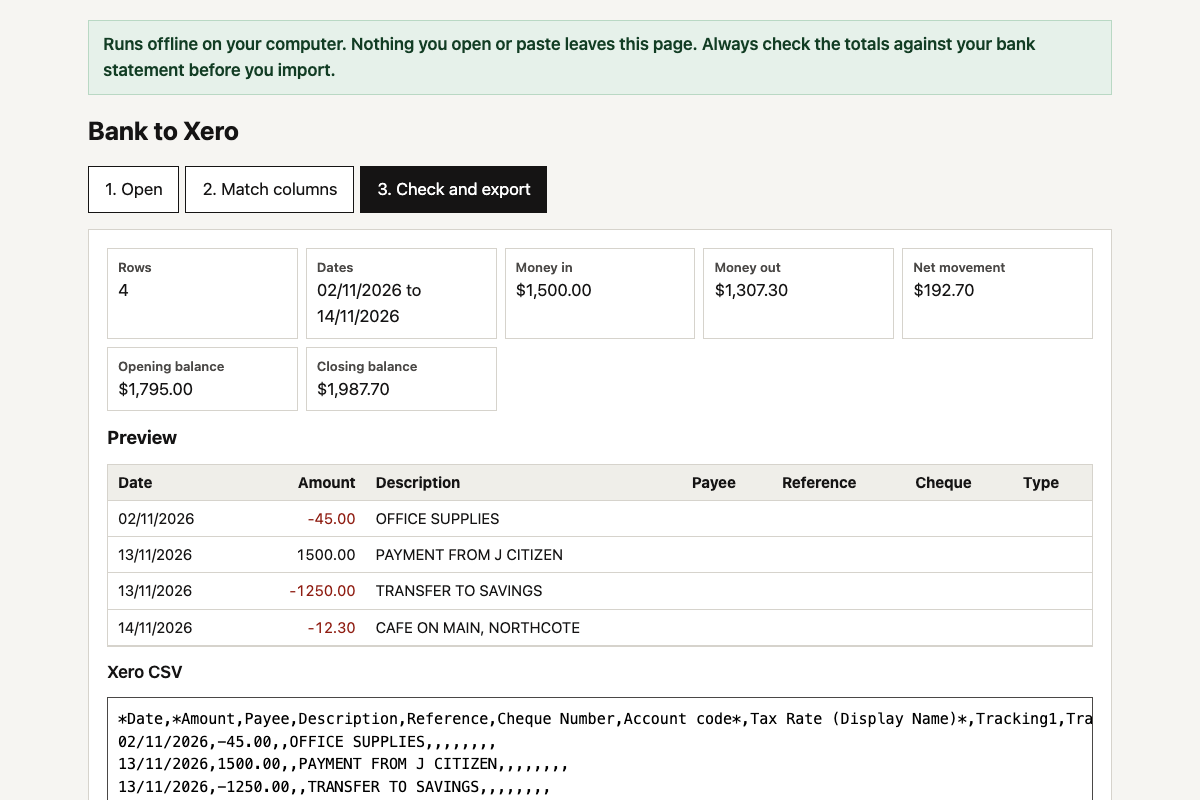 Bank CSV to Xero converterTurns a CSV from any Australian bank’s internet banking into Xero’s bank statement import format, with the dates, signs and columns fixed.
-
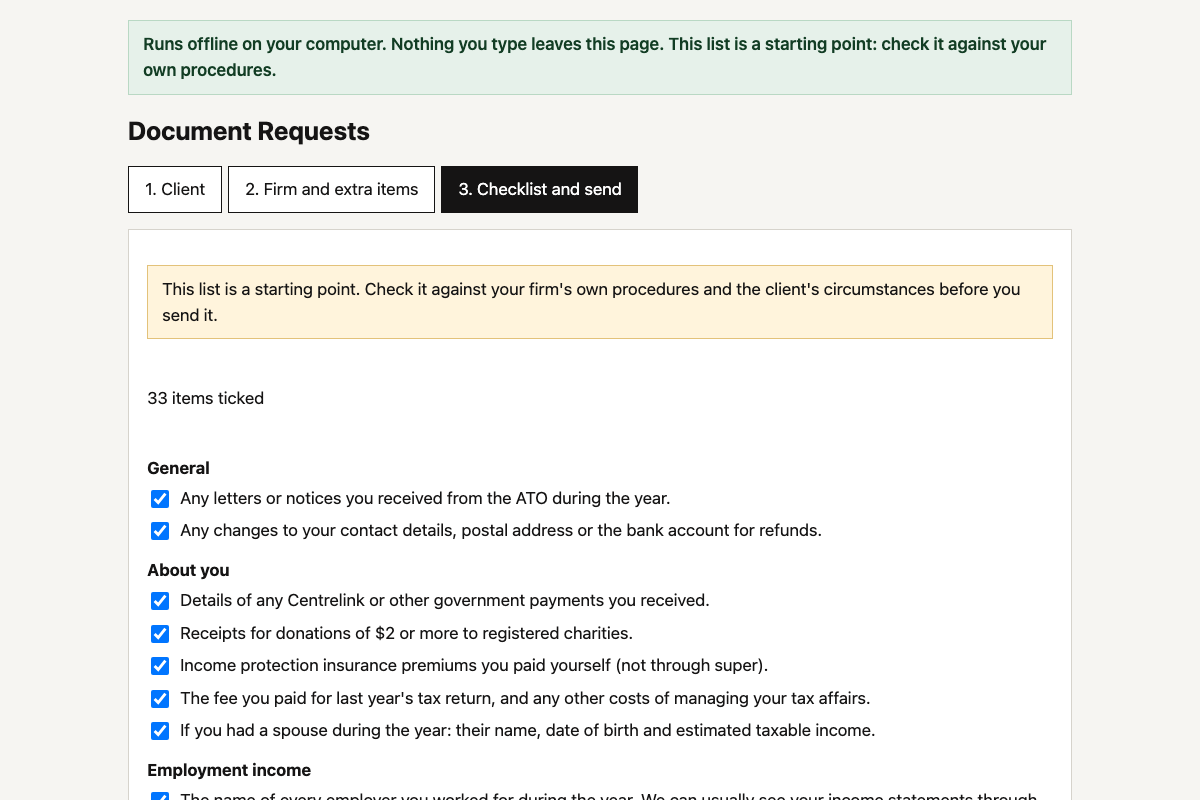 Client document request builderPick the client type and what applies, and get a tailored list of what to send you for this year’s tax return, as a ready-to-send email.
-
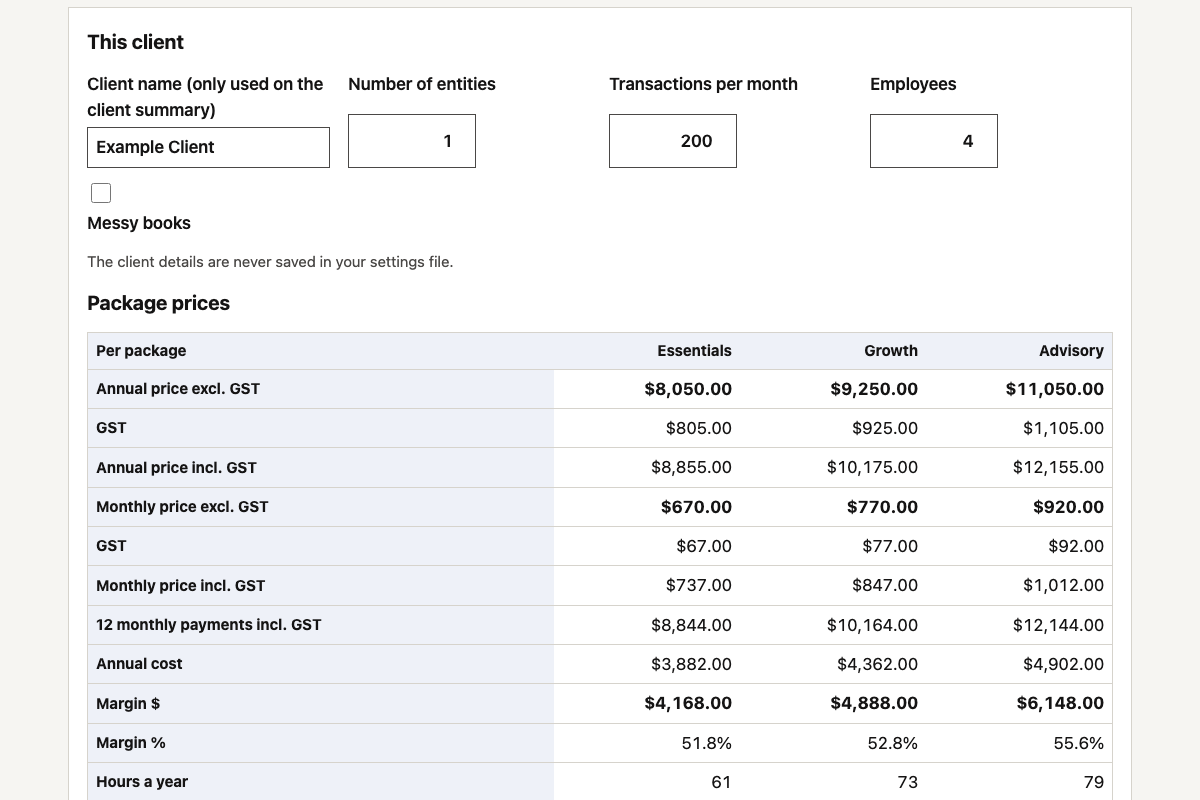 Fixed-fee package calculatorPrice your fixed-fee packages from your own team costs and hours, and see the margin and effective hourly rate on every one before you quote.