Client document request builder
Pick the client type and what applies, and get a tailored list of what to send you for this year’s tax return, as a ready-to-send email.
- About 10 minutes
- Works offline
- Tested 11 Nov 2026
Free. Opens in Chrome, Edge or Safari. Read the disclaimer first.
What it does
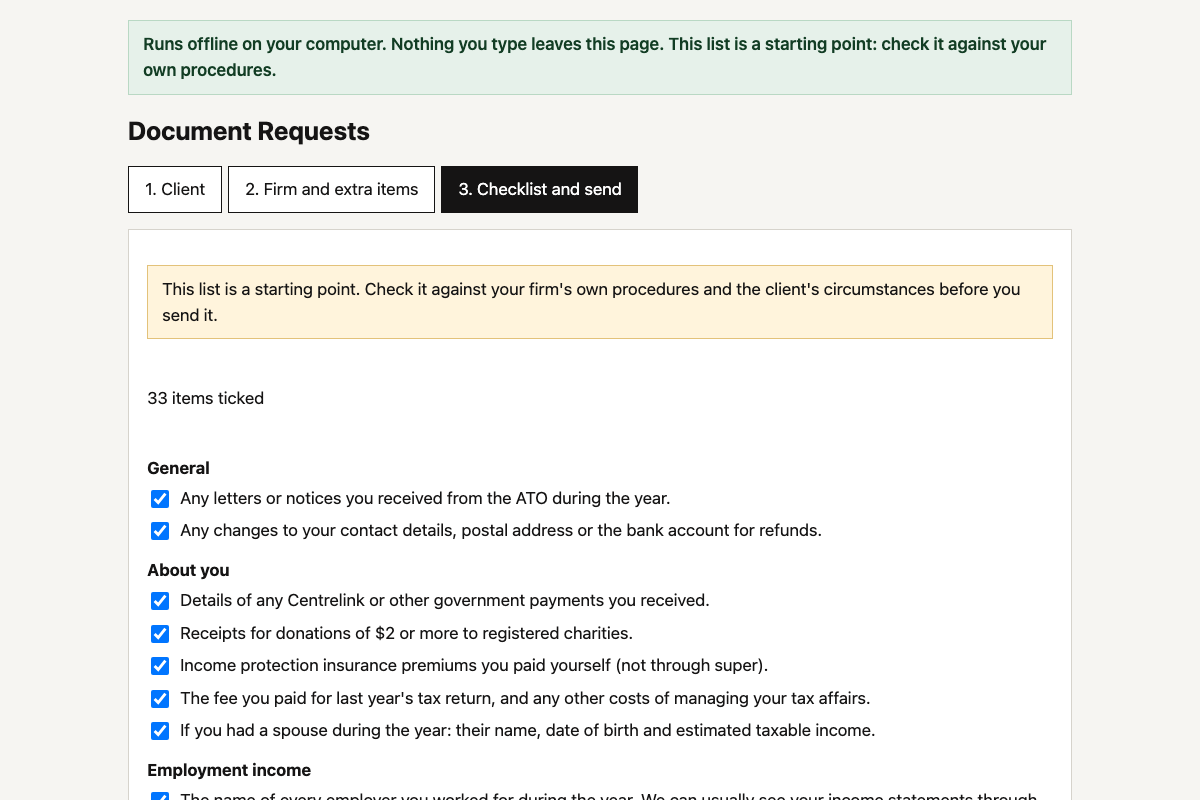
Tax time goes faster when clients send everything the first time. This builds the right list for each client in a minute.
- 01 Pick the client type Individual, sole trader, partnership, company, family or unit trust, or SMSF.
- 02 Tick what applies Rental property, shares and crypto, employees, Division 7A loans, SMSF pensions and more.
- 03 Get a tailored list About 100 items in plain English, grouped by topic, with your own items added.
- 04 Send it your way A ready-to-send email, a printable checklist, or a CSV for your practice software.
Where your data goes
The AI only sees the prompt. The finished tool needs no client data at all; if you type a client’s name into the email, it stays on your computer and is wiped when you close the tab.
That’s all the AI ever sees. It writes the tool and hands back the code.
A rule inside the file blocks every internet connection. Nothing is saved, and closing the tab wipes it.
For beginners · about 10 minutes
Build your own in five steps
-
Step 1: Turn off model training
Claude: Settings › Privacy. ChatGPT: Settings › Data controls.
-
Step 2: Give the prompt to Claude or ChatGPT
It builds the whole tool in one answer. If it stops, reply “continue”.
The prompt
Opens a new chat with the prompt. Long prompts go on your clipboard: paste into the chat that opens.
Works without client data. Don't paste client names, tax file numbers or ledgers into an AI tool your firm hasn't approved for them. AI data safety playbook.
Read the full prompt (22,506 characters)
I'm an Australian accountant. Build me a private client document request list builder that I'll run on my own computer. It builds the list of documents and information I need from a client for their annual tax return and financial statements, then turns it into an email, a printable checklist and a CSV. Build the whole thing in one go, using the defaults below. Don't ask me questions first. SAFETY RULES (these override everything else) 1. Never ask me to paste real client data into this chat. While we build and test, use only made-up sample data that you write yourself. 2. Deliver ONE self-contained HTML file that I save and open from my own computer. No server, no account, no installation. 3. The file must make no network connections of any kind. No external scripts, libraries, fonts, images, CDNs, analytics or tracking. No fetch, XMLHttpRequest, WebSocket, sendBeacon or EventSource. No forms that submit anywhere. No links that carry data. 4. Put this exact Content-Security-Policy meta tag first in the <head>, so the browser itself blocks any connection: <meta http-equiv="Content-Security-Policy" content="default-src 'none'; script-src 'unsafe-inline'; style-src 'unsafe-inline'; img-src data:; connect-src 'none'; form-action 'none'; base-uri 'none'"> 5. Never store anything. Keep every setting, the client's name and my extra items in memory only. Don't use localStorage, sessionStorage, IndexedDB or cookies. Closing the tab must wipe everything. Add a "Clear everything" button and a warning before the tab closes if I've typed a client name, firm details or extra items. 6. The tool needs no client data to work. The client's name is optional and only used in the email greeting. WHAT IT DOES Three tabs: 1. Client, 2. Firm and extra items, 3. Checklist and send. Only one tab shows at a time. 1. Client - "Client type" (radio buttons): Individual, Sole trader, Partnership, Company, Discretionary or family trust, Unit trust, SMSF. Codes: individual, soletrader, partnership, company, disctrust, unittrust, smsf. Default: Individual. - "Financial year" (drop-down). FY2026 means 1 July 2025 to 30 June 2026. Offer the four years from two before the most recently ended year to one after it. Default to the most recently ended year: if today is in July to December, that is the year ending this 30 June; otherwise the year ending last 30 June. Show the dates next to the drop-down. - "What applies" (tick boxes, all off by default). Show only the options the chosen client type offers; hide the rest using the hidden attribute, and ignore any hidden option that was ticked earlier. The options and the client types that offer them: employment "Employment income (wages or salary)": individual, soletrader rental "Rental property": every type shares "Shares, managed funds or crypto": every type overseas "Overseas income or assets": every type cgt "Sold an asset (capital gains event)": every type gst "Registered for GST": every type except individual payroll "Employees and payroll": soletrader, partnership, company, disctrust, unittrust vehicles "Vehicles used for work or business": every type except smsf homeoffice "Working from home or home office": individual, soletrader privatehealth "Private health insurance": individual, soletrader help "HECS/HELP or other study loan": individual, soletrader div7a "Division 7A loans (company loans to owners)": company, disctrust, unittrust trustdist "Trust distributions": every type except smsf smsfcontrib "SMSF contributions": smsf smsfpension "SMSF pensions": smsf - "Client's name for the email (optional)". Note under it: "Kept in memory only. Leave blank to start the email with 'Hi there'." 2. Firm and extra items - Firm name, sign-off (for example "Kind regards, Alex"), and the deadline (a date input). - At the top of the script, a FIRM_DEFAULTS object { firmName: '', signOff: 'Kind regards,', daysToDeadline: 21 } that I can edit in a text editor so I don't retype my details each time. Show a note saying so. An empty deadline defaults to today plus daysToDeadline when the page opens. - "Add your own items": a text box and an "Add item" button. Extra items go in a section called "Other items we need", appear in every output, and each has a Remove button. Turn line breaks into spaces and ignore blank items. 3. Checklist and send - Show the visible note: "This list is a starting point. Check it against your firm's own procedures and the client's circumstances before you send it." - The checklist, grouped by section in the order listed under CONTENT, with a heading per section and a tick box per item (all ticked by default). Unticking an item leaves it out of the email, the printout and the CSV. Keep each item's ticked state when the list is rebuilt, matched by item id. - A count: "N items ticked". - The email: a read-only box with the subject line and the plain-text body, and a "Copy email" button (navigator.clipboard, with a fallback that selects the text and uses document.execCommand('copy'); say "Copied" or "Copy failed: select the text and copy it yourself"). - A "Print or save as PDF" button that calls window.print(). Build a separate print sheet element (not using the hidden attribute) that is display:none on screen; in @media print hide everything else and show only the sheet: the firm name, "Documents we need for your FY2026 <work>", the period, the client's name if given, the deadline, then each section with an empty square (☐) before each ticked item, and the starting-point note in small print at the bottom. - A "Download CSV" button. Columns: Section, Item, Received (Received left blank). One header row, then one row per ticked item. Quote every cell, double any quotes, and put an apostrophe in front of any cell starting with =, +, -, @, a tab or a carriage return so spreadsheets can't run it as a formula. Use \r\n line endings and a UTF-8 byte-order mark. Download it with a Blob, URL.createObjectURL and a temporary <a download> link, named document-requests-FY2026.csv (the real year, never the client's name), then revoke the URL. - Rebuild the checklist, email and print sheet whenever anything changes on any tab. THE EMAIL Subject: Documents we need for your FY2026 <work> Body: Hi <client name or "there">, We're getting ready to prepare your <work> for the FY2026 financial year (1 July 2025 to 30 June 2026). Please send us the items below by <deadline>. If something doesn't apply to you, just let us know. If you're not sure whether you need to send something, send it and we'll sort it out. <SECTION HEADING IN CAPITALS> - <item> (a blank line between sections) <sign-off> <firm name> <work> is "tax return" for individual, "tax return and business accounts" for soletrader, "annual return, financial statements and audit" for smsf, and "tax return and financial statements" for every other type. Format the deadline as "31 August 2026" (day, full month name, year) without relying on the browser's locale. If there is no deadline, say "as soon as you can" instead of "by <deadline>". If the sign-off has words after its first comma ("Kind regards, Alex"), put those words on the next line. If the sign-off or the firm name is empty, leave that line out. CONTENT (Australia) Write each item as an object { id, sec, text, for, when, personal }. "for" lists the client types it applies to (omit for every type). "when" names the option that must be ticked (omit for items that always apply). "personal: true" marks items that only make sense for a person (individual and soletrader only). Replace {period} with the year's dates, for example "1 July 2025 to 30 June 2026", and {end} with the last day, for example "30 June 2026". Use exactly this content, in this section order: General (every type) - Any letters or notices you received from the ATO during the year. - Any changes to your contact details, postal address or the bank account for refunds. - [company] Your ASIC annual statement and anything else ASIC sent you this year. - [smsf] If the fund has a company as trustee: the company's ASIC annual statement. About you [individual, soletrader; personal] - Details of any Centrelink or other government payments you received. - Receipts for donations of $2 or more to registered charities. - Income protection insurance premiums you paid yourself (not through super). - The fee you paid for last year's tax return, and any other costs of managing your tax affairs. - If you had a spouse during the year: their name, date of birth and estimated taxable income. Business records [soletrader, partnership, company, disctrust, unittrust] - Access to your accounting software, or bank statements for every business account for {period}. - Records of all income: sales invoices, takings, and payments through card terminals or online platforms. - Receipts or invoices for expenses. - A list of customers who owed you money, and bills you hadn't paid, at {end}. - The value of any trading stock on hand at {end}. - Invoices for any equipment, vehicles or other assets bought or sold during the year. - Statements for every loan, credit card or finance agreement used in the business. - Any PAYG instalment notices from the ATO. - [partnership] How the partners agreed to share the profit or loss, and any new or changed partnership agreement. - [partnership] Each partner's drawings, and any money a partner put into or took out of the business. - [company] Details of any dividends paid during the year: dates, amounts and franking. - [company] Any changes to directors, shareholders or the company's addresses. - [disctrust] The trustee's resolution showing how this year's income is shared among the beneficiaries. It must be made by {end}, or earlier if the trust deed says so. - [disctrust] Any change to the trustee, the appointor or the trust deed during the year. - [disctrust, unittrust] Details of any loans between the trust and its beneficiaries, unitholders or related businesses. - [unittrust] The unit register, and details of any units issued, transferred or redeemed during the year. - [unittrust] The trustee's resolution or minutes for this year's distributions to unitholders. - [unittrust] Any change to the trustee or the trust deed during the year. Fund records [smsf] - Bank statements for every fund bank account for {period}. We need these even if your bank sends us a data feed. - Statements from every investment platform, broker or fund manager the fund uses. - The market value of every fund asset at {end}, with evidence of how it was worked out (for example a valuation, appraisal or statement). - Minutes of trustee meetings and decisions made during the year. - The fund's current investment strategy, and when the trustees last reviewed it. - Any change to the trust deed, the trustees, the directors of the trustee company or the members. - Invoices for expenses the fund paid, such as accounting, audit, insurance and ASIC fees. - Details of any insurance policies the fund holds for members. - Details of any dealings with members, their relatives or their businesses, such as loans, leases or asset purchases. Employment income [when employment; personal] - The name of every employer you worked for during the year. We can usually see your income statements through the ATO. - Receipts for work expenses you paid and weren't reimbursed for, such as uniforms, tools, training, union fees and subscriptions. - Any employee share scheme statement from your employer. - Any termination or lump sum payment statement, if you left a job. Rental property [when rental] - The address of each property, when it was first rented, and the dates it was rented or available for rent this year. - The agent's annual and monthly statements for each property, or your own record of rent received if you manage it yourself. - Loan statements for the year showing the interest charged on any loan for the property. - Bills for council rates, water, land tax, strata or body corporate fees, insurance and agent's fees. - Invoices for repairs and maintenance, with a short note of what was done. - Invoices for any renovations, improvements or new items such as appliances or carpet, with before-and-after photos if you have them. - Your depreciation schedule from a quantity surveyor, if you have one. - If the property was bought this year: the purchase contract and settlement statement. - [individual, soletrader, partnership, disctrust, unittrust] The dates you, your family or friends used the property, or rented it at less than market rent. Shares, funds and crypto [when shares] - Dividend statements for all shares held during the year. - Annual tax statements from each managed fund, ETF or listed investment trust. - Contract notes for any shares or units sold, and for when they were first bought. - Dividend reinvestment plan statements, if dividends are reinvested. - A full transaction history exported from every crypto exchange and wallet used, showing the dates, Australian dollar values and what each transaction was for. - Details of any crypto staking rewards, airdrops or crypto received as payment. Overseas income and assets [when overseas] - Details of any income from outside Australia: the country, amount, date and type (for example wages, pension, rent, interest or dividends). - Proof of any foreign tax paid on that income. - Statements for any overseas bank accounts, investments or pensions. - [individual, soletrader; personal] The dates you arrived in or left Australia during the year, if you moved or spent long periods overseas. Assets sold [when cgt] - For each asset sold (property, shares, crypto, a business or other valuable items): the date and price it was bought and the date and price it was sold. - Purchase and sale contracts and settlement statements for any property sold. - Costs of buying and selling, such as stamp duty, legal fees, agent's commission and advertising. - Invoices for any improvements made while it was owned. - [individual, soletrader; personal] If you sold your home: whether it was ever rented out or used to earn income, and the dates. GST [when gst] - Copies of the business activity statements (BAS) lodged for the year, or confirmation that we lodged them. - Tax invoices for purchases over $82.50 (including GST) where GST credits were claimed, if they aren't in your accounting software. - Details of any sales or purchases where you're unsure how GST applies. Employees and payroll [when payroll] - The payroll report for the year from your payroll software, showing gross wages, tax withheld and super for each employee. - Confirmation that Single Touch Payroll (STP) has been finalised for the year (due by 14 July). - Details of super paid for employees, including the date each payment was made. - Your workers compensation policy, and any payroll tax returns if you're registered for payroll tax. - Details of any payments to contractors, if you need to lodge a taxable payments annual report. - Details of any fringe benefits given to employees, such as a car or paying their personal expenses. Vehicles [when vehicles] - For each vehicle: the make, model, registration, and the date it was bought or sold. - The logbook (at least 12 continuous weeks, and less than 5 years old) and the odometer readings at the start and end of the year. - [individual, soletrader, partnership] If there's no logbook: a diary or record showing how you worked out your work kilometres. - Receipts for fuel, registration, insurance, servicing and repairs (needed for the logbook method). - Loan, lease or hire purchase statements for each vehicle. - [company, disctrust, unittrust] Details of any private use of vehicles by owners, employees or their families. Working from home [when homeoffice; personal] - A record of the actual hours you worked from home across the whole year, such as a timesheet, roster or diary kept at the time. An estimate isn't enough. - One bill for each running cost you're claiming, such as electricity, internet and phone. - Receipts for any furniture or equipment bought for working at home, such as a desk, chair or computer. - [soletrader] If part of your home is set aside only for the business: the floor area of that space and of the whole home, and the year's mortgage interest or rent, council rates and home insurance. Private health insurance [when privatehealth; personal] - Your health insurer's name and your membership number. - Your private health insurance statement, if you have it. Insurers no longer send it automatically, but you can download it from your insurer's app or website. - Whether the policy covers a spouse or dependants. Study loans [when help; personal] - Let us know if you have a HELP (HECS) or other government study or training loan. We can see the balance through the ATO, so no documents are needed. - Let us know if you lived overseas during the year, as different repayment rules apply. Division 7A loans [when div7a] - [company] Statements of every loan account between the company and its shareholders, directors, their relatives or related trusts, for {period}. - [company] The signed written loan agreement for each loan, including loans made in earlier years. - The date and amount of every repayment made on these loans during the year. Repayments only count if they are made by {end}. - [company] Details of any company money or assets used privately by a shareholder or director, such as paying personal bills. - [disctrust, unittrust] Details of any amount a company beneficiary was entitled to but hasn't been paid, and any loans between the trust and a related company. Trust distributions [when trustdist] - [individual, soletrader, partnership, company] The distribution statement from each trust that paid or allocated you a distribution, showing the type of income, franking credits and capital gains. - [disctrust, unittrust] Distribution statements from any other trusts that distributed to this trust. - [disctrust, unittrust] Details of any distributions paid in cash or used to pay a beneficiary's expenses during the year. Contributions [when smsfcontrib] - For each member: every contribution received during the year, with the date, amount and type (employer, salary sacrifice, personal or other). - Any notice of intent to claim a deduction for personal super contributions a member gave the fund, and the trustee's written acknowledgement. - Any requests to split contributions to a spouse, and any downsizer contribution forms. - Rollover statements for any money rolled in from other super funds. Pensions [when smsfpension] - For each pension started this year: the pension documents and the trustee minutes that started it. - The pension payments made to each member during the year, with dates and amounts, so we can check the minimum was paid. - Details of any lump sums, commutations or rollovers out of the fund. - Evidence that the member met a condition of release (for example retiring or turning 65) for any benefit paid. - Copies of any transfer balance account reports lodged with the ATO, or confirmation that we lodged them. - An actuarial certificate if you've arranged one. We'll tell you if the fund needs one. Other items we need (the firm's own extra items, last) Items in square brackets apply only to those client types. An item can only appear if its client type list includes the chosen type, its option (if any) is ticked and offered for that type, and, if it is personal, the type is individual or soletrader. A section with no items for the chosen type doesn't appear. ACCURACY AND HONESTY - Show this permanently at the top: "Runs offline on your computer. Nothing you type leaves this page. This list is a starting point: check it against your own procedures." - Keep the list-building, email and CSV code as plain functions that take their inputs as arguments (buildList, makeEmail, makeCSV, fyInfo, formatDate), so the self-test can call them without touching what's on screen. - Add a "Run self-test" button on tab 1. It must not change anything I've entered. It shows pass or fail for each of these: - Each of the seven client types, with nothing ticked, gives a non-empty list (one line per type). - An SMSF with every option ticked gets no personal (individual-only) items, and none from the Employment income, Working from home, Private health insurance, Study loans or About you sections. - Company, partnership and both trust types with every option ticked get no personal items either. - Ticking rental property for an individual adds the Rental property section. - Unticking it removes the section again. - Ticking an option the client type doesn't offer (employment for an SMSF) adds nothing. - FY2026 reads "1 July 2025 to 30 June 2026". - The email for firm "Sample & Co" with deadline 2026-08-31 contains "Sample & Co" and "31 August 2026". - With two items unticked, the CSV has one data row per ticked item (count the rows, excluding the header). - An extra item "=SUM(A1)" appears in the CSV as '=SUM(A1). - No network: the Content-Security-Policy meta tag with connect-src 'none' is present. - Add a "Load sample" button that fills every tab with made-up details: an individual with employment income, a rental property, shares, working from home and private health insurance ticked; client name "Sam"; firm "Sample & Co Accountants"; sign-off "Kind regards, Alex"; one extra item "Your new home address, if you moved during the year."; and today plus 21 days as the deadline. DESIGN Plain, clear and calm. Large text, a readable font from the system font stack (no web fonts), high contrast, good keyboard focus states, and layouts that work on a laptop screen. Use real <label> elements for every tick box and radio button. Include [hidden] { display: none !important; } so layout styles can't override it. WHEN YOU'RE DONE 1. Give me the complete HTML file in a single code block, with nothing left out or abbreviated. 2. Tell me how to save it: copy it into a plain-text file named document-requests.html, save it to my computer, and open it in Chrome, Edge or Safari. 3. Tell me how to prove it's offline: turn off Wi-Fi, open the file, click "Load sample" and "Run self-test", and check that everything still works and every test passes. 4. Remind me to try it on the sample first, then check the list against my firm's own procedures before sending it to a real client. -
Step 3: Save the code as
document-requests.htmlMac: TextEdit, then Format › Make Plain Text. Windows: Notepad, save as “All files”.
-
Step 4: Open it offline and run the self-test
Wi-Fi off, double-click the file, then Load sample and Run self-test. Every line says Pass.
-
Step 5: Check it’s safe
New chat: paste this check, then your file’s code underneath. Every check says PASS.
- Internet blocked by the browser
- No code that sends data
- Nothing saved on the computer
- No hidden sending on close
- Wiped when you close the tab
- A self-test on made-up data
- No scrambled or hidden code
The safety check
Opens a new chat with the check. Paste your file’s full code at the end.
Works without client data. Don't paste client names, tax file numbers or ledgers into an AI tool your firm hasn't approved for them. AI data safety playbook.
Read the full prompt (1,488 characters)
Check a tool I built with AI before I use it at my accounting firm. The complete code of the HTML file is pasted below my questions. It contains no client data. Don't change the tool. Just check it and report.

Check each of these and answer PASS or FAIL with one line of evidence (quote the line of code):

1. Internet blocked: the first tag in <head> is a Content-Security-Policy meta tag containing connect-src 'none', default-src 'none' and form-action 'none'.
2. No network code: no fetch, XMLHttpRequest, WebSocket, EventSource, navigator.sendBeacon, import(), or <script src>, <link href>, <img src> or <iframe> pointing to another site. A Blob URL used for downloading a file is fine.
3. No storage: no localStorage, sessionStorage, indexedDB, document.cookie or caches.
4. No hidden sending: no form with an action, no links or window.open that carry entered text in the address, and nothing that sends data when the page closes.
5. Wipes on close: everything is held in memory only, and there is a "Clear everything" button.
6. Self-test: there is a "Run self-test" button and it uses made-up data only.
7. Nothing obfuscated: no long encoded strings, eval, new Function or code that builds code from text.

Then give an overall verdict: SAFE TO USE if every check passes, or NOT SAFE with exactly what to fix. If anything fails, write the corrected lines of code, and tell me to ask the AI that built the tool to fix it and give me the complete file again.

Here is the code:
Done. Open the file whenever you need it. Real client data only ever goes into the tool, never into a chat. Close the tab and everything is wiped.
Advanced
When you’re ready for more
Check the download is oursCompare its fingerprint in one command
Mac, in Terminal:
shasum -a 256 ~/Downloads/document-requests.html Windows, in Command Prompt:
certutil -hashfile %USERPROFILE%\Downloads\document-requests.html SHA256 The result should be exactly:
7c64880e17fda8bd0ad50ca0cc37cde7d61c8a50402dcb70a2d903799ec7a288 If something goes wrongCut-off answers, failed tests, a blank page
- The answer stopped part way. Reply “continue the code exactly where you stopped”, then join the parts.
- A self-test failed. Paste the failing line (it’s made-up data) into the same chat: “Fix this and give me the complete file again.”
- The page is blank or looks like code. The file was saved as rich text. Save it again as plain text, ending in .html.
- Never paste a real client’s details into a chat to explain a problem.
Know the limits
- A starting point Check the list against your firm’s procedures and the client’s circumstances before you send it.
- Not every situation Primary production, deceased estates, FBT returns and R&D aren’t covered. Add your own items for these.
- Settings don’t save Nothing is stored, so your firm name and extra items reset when the tab closes. Edit the settings block at the top of the file to keep them.
- Check it each year Rules and thresholds change. The client wording avoids rates on purpose, but review the list before each tax season.
Please read: use these at your own risk
- These prompts, guides and tools are general information, not professional, legal, privacy or IT advice. The Firm takes no responsibility for how they are built, changed or used, or for anything that results.
- AI writes a slightly different tool each time. Whatever you build or download is yours to check, test and approve before you rely on it or use it with client data.
- Check your AI provider’s current settings and terms for how your data is stored and whether it is used to train its models. Plans and settings change.
- Bring your own judgement, and follow your firm’s AI policy and your professional and privacy obligations.
Questions firms ask
Which client types does the document request builder cover?
Individuals, sole traders, partnerships, companies, family and unit trusts, and SMSFs.
Is the list complete for every client?
It’s a starting point. Primary production, deceased estates, FBT returns and R&D aren’t covered, so add your own items for those, and check the list against your firm’s procedures before you send it.
Does it need any client data?
No. If you type a client’s name into the email, it stays on your computer and is wiped when you close the tab.
Can I add my firm’s name and my own items?
Yes, but nothing is saved between sessions. To keep them, edit the settings block at the top of the file once.
Do I need to know how to code?
No. Copy the prompt into Claude or ChatGPT, save the file it gives you, and open it in your browser. If you’d rather not build it, download the copy we built and tested.
11 Nov
How we tested it
Claude, 11 Nov 2026. Built from this prompt. All 17 self-tests passed, including that an SMSF never gets individual-only items. Wording checked against ATO guidance on 11 Nov 2026.
Each AI writes a slightly different tool, so the self-test and safety check are built in. Run both after any change.
Did it work first time?
Which AI did you use?
We only record those two answers.
More to build
-
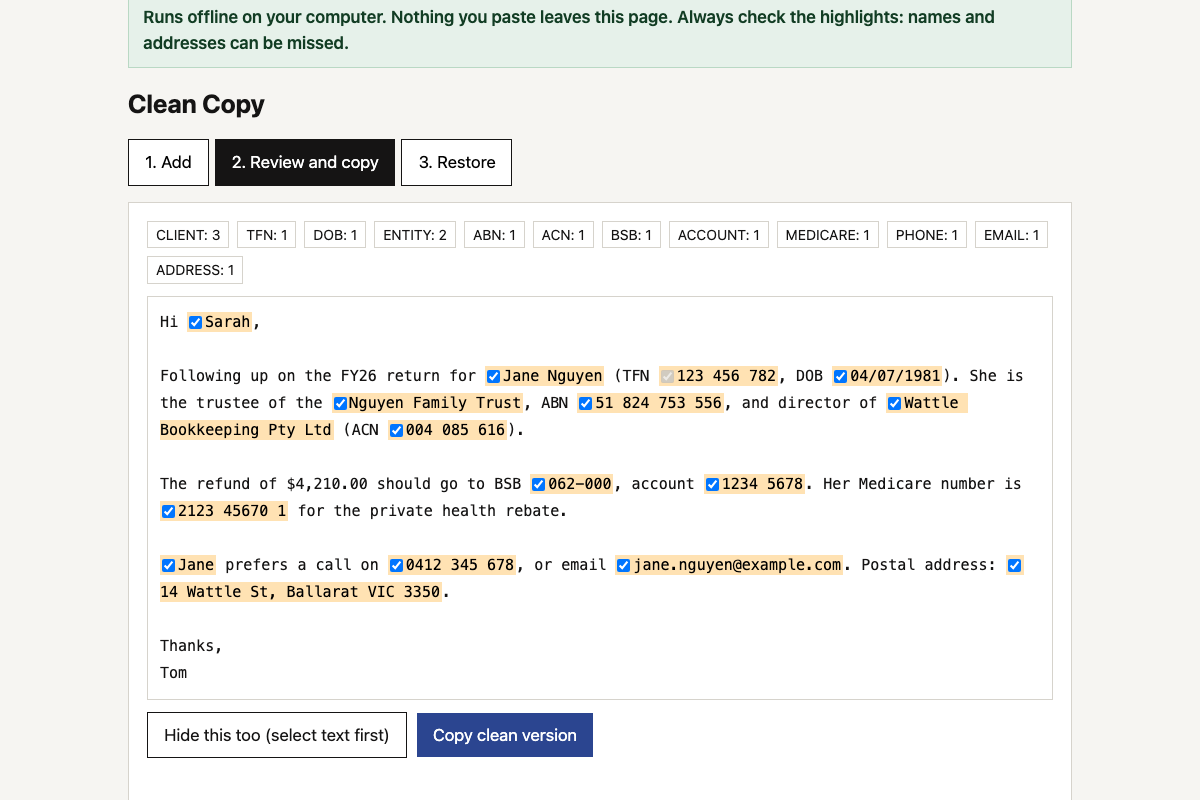 Client data redaction toolHides TFNs, ABNs, bank details, names and addresses before you use AI on client work, then puts the real details back into the answer.
-
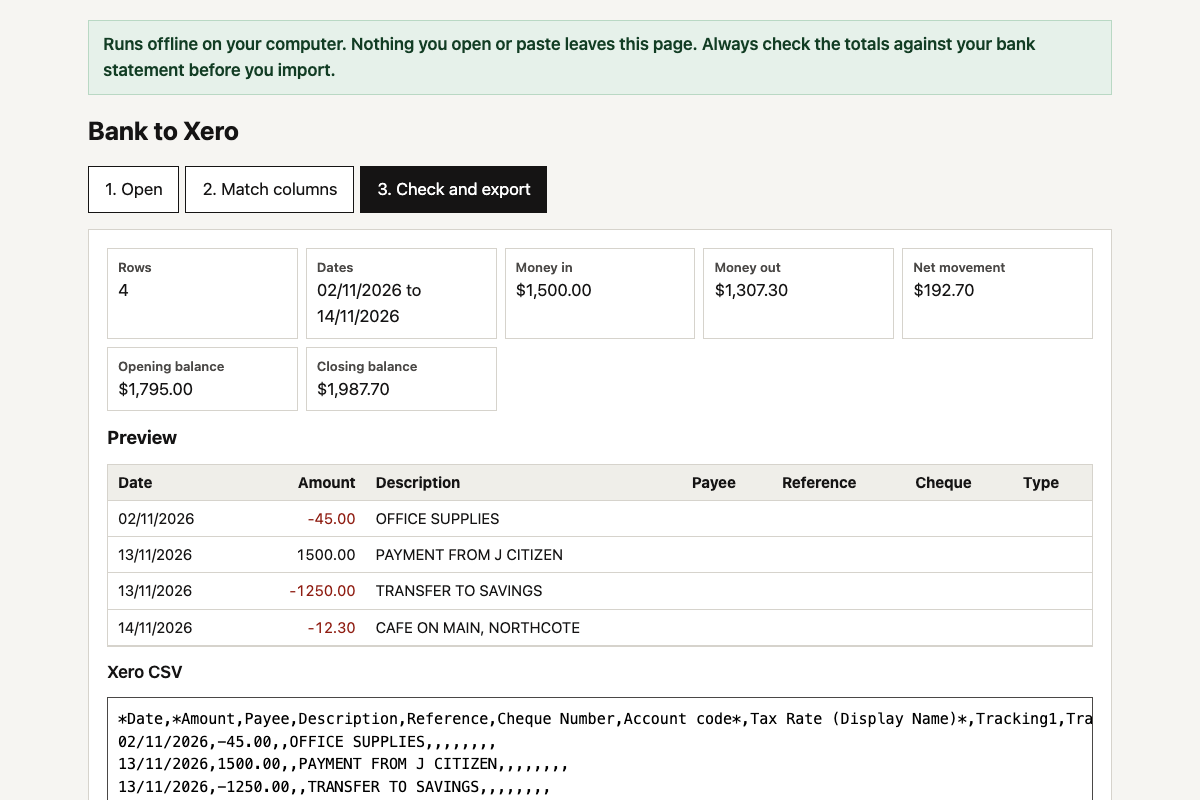 Bank CSV to Xero converterTurns a CSV from any Australian bank’s internet banking into Xero’s bank statement import format, with the dates, signs and columns fixed.
-
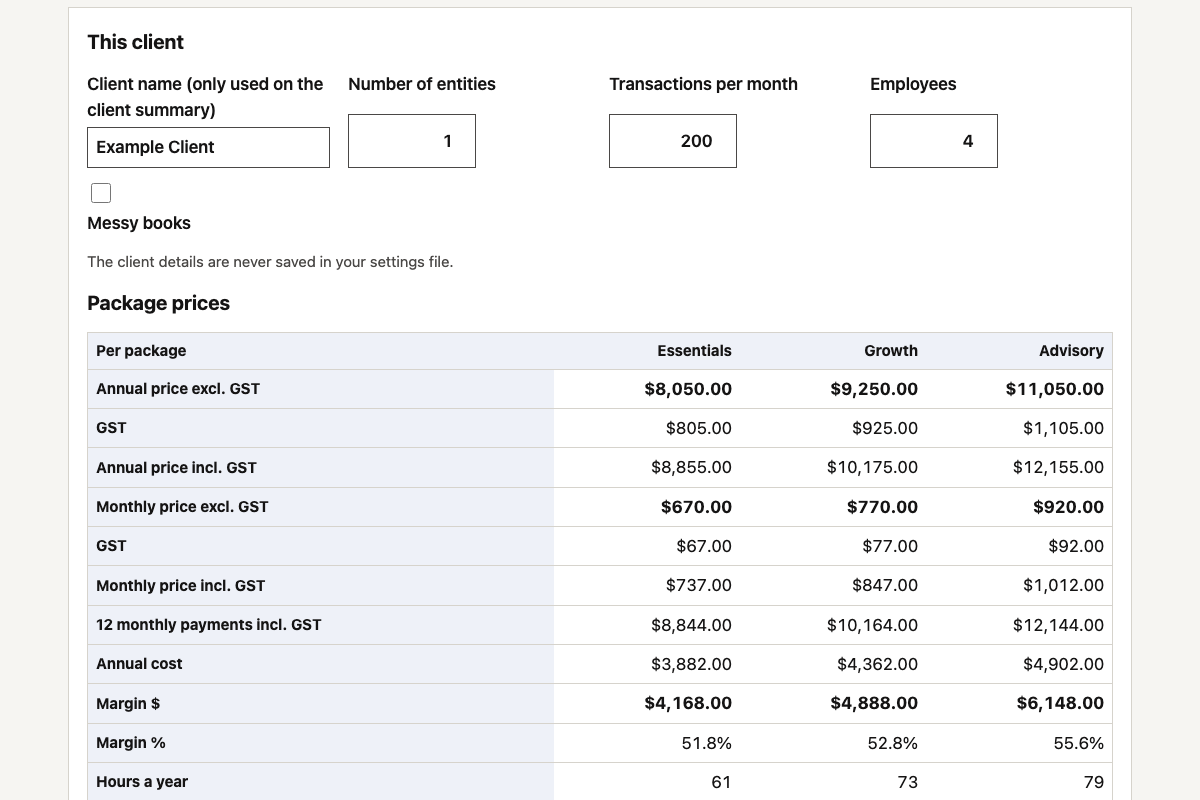 Fixed-fee package calculatorPrice your fixed-fee packages from your own team costs and hours, and see the margin and effective hourly rate on every one before you quote.